

AI Christmas Desktop Wallpaper: 16 Original Prompts
Create an AI Christmas Desktop Wallpaper that fits your screen and keeps icons clear. Copy 16 original prompts, then adjust the crop, resolution, and subject placement.
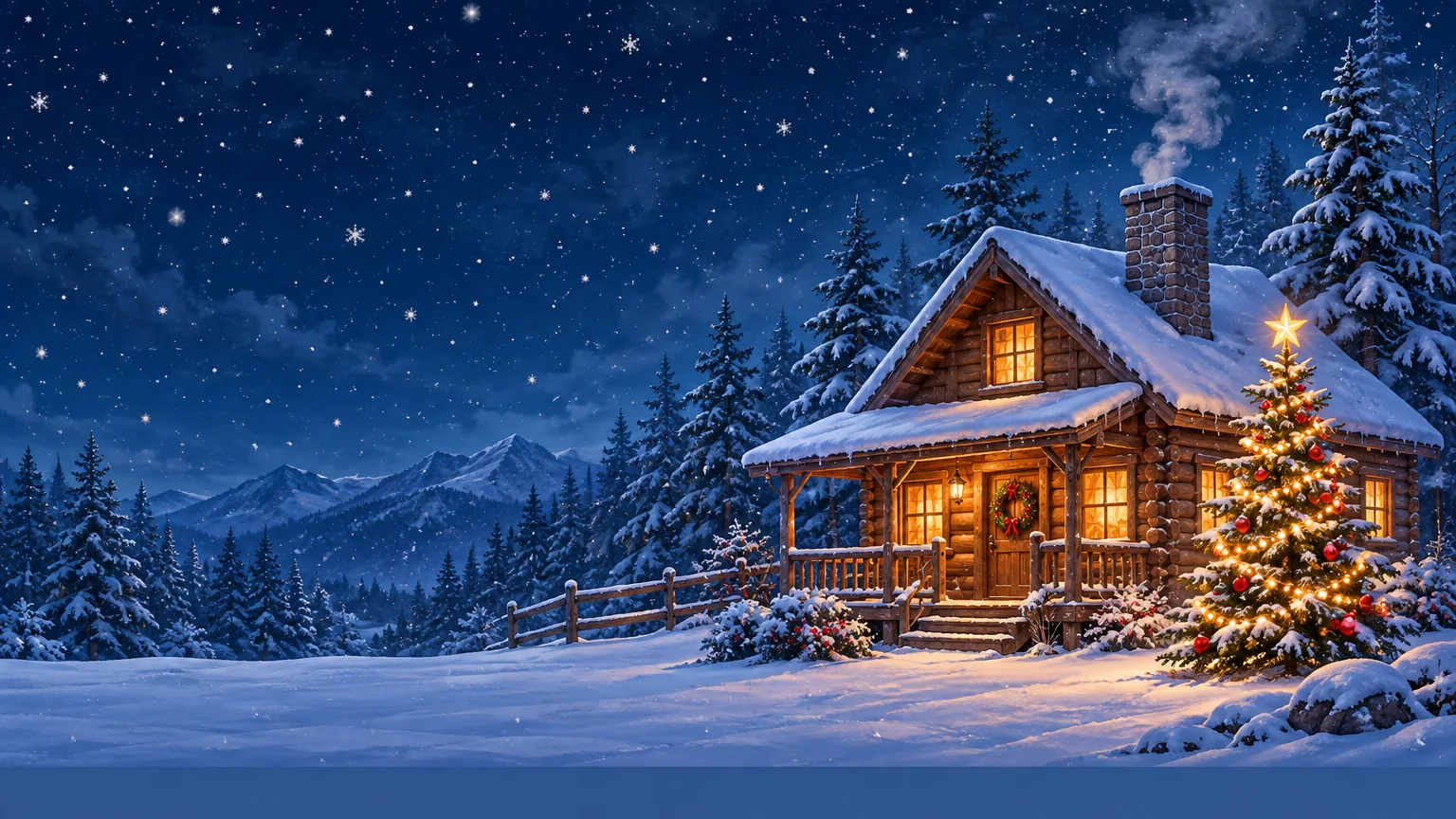
Make an AI Christmas Desktop Wallpaper that feels festive without hiding your desktop icons, taskbar, or dock. These 16 original prompts are grouped by mood and include practical composition cues for 16:9, 16:10, and ultrawide screens. Copy a prompt, generate an image in your preferred tool, and adjust the framing and output size to suit your display.
What's new on this page
- 2026-11-25 — Page published. Added original Christmas desktop wallpaper prompts with screen-ratio and icon-space tips.
Set up the frame before you generate
Start by checking your display’s aspect ratio, then choose a matching canvas if your image tool offers one. Common examples include 16:9 for many standard widescreen displays, 16:10 for taller screens, and 21:9 or another wide ratio for ultrawide monitors. Your exact display may differ, so check its settings or specifications.
Tell the image tool where to leave breathing room. For example, reserve a quiet strip along the left for desktop icons and keep the bottom edge visually simple where the taskbar or dock sits. If your icons are on the right, reverse the prompt’s placement instructions. Avoid putting a face, bright ornament, or other important detail in those areas.
| Screen shape | Prompt adjustment | Composition reminder |
|---|---|---|
| 16:9 | Request a balanced widescreen scene | Leave a clear side and a calm bottom edge |
| 16:10 | Ask for a slightly taller view of the setting | Keep the main subject away from the bottom |
| Ultrawide | Describe an expansive panoramic scene | Place the subject off-center; extend scenery across the width |
Aspect ratio describes the shape of the image, not its pixel dimensions. Choose an output resolution supported by your tool and display. When resizing, preserve the original proportions if possible; stretching can distort the scene, while cropping can cut off decorations. If you need a consistent canvas for multiple images, the Bulk Image Resizer can help match PNG canvas sizes.
Cozy and classic
-
Quiet cabin glow: “A cozy Christmas cabin living room at blue hour, glowing fireplace and small evergreen tree on the right third, warm window light, snowy forest beyond, left third uncluttered for desktop icons, simple dark lower edge for a dock, cinematic illustration, wide horizontal wallpaper, no text, no watermark.” For 16:10, add “show more of the rug and ceiling.”
-
Wool-and-cocoa still life: “A steaming mug of cocoa, knitted blanket, cinnamon sticks, and a tiny evergreen arrangement on a wooden table, objects grouped in the lower-right corner, soft snowy window view across the upper half, ample quiet space on the left, warm handmade holiday illustration, wide desktop wallpaper, no text.” Keep the tabletop clear of the bottom edge.
-
Vintage village evening: “A charming old-fashioned Christmas village at dusk, glowing shop windows and decorated trees along the lower-right horizon, broad twilight sky filling the upper two-thirds, open darker space on the left for icons, painterly vintage postcard style, panoramic desktop background, no lettering.” For ultrawide, extend the village and sky sideways.
-
Paper-cut forest: “Layered paper-cut evergreen forest with a small red cabin positioned right of center, falling snow, muted cream and pine-green palette, open pale sky on the left, very simple bottom margin, crisp crafted texture, wide horizontal Christmas wallpaper, no words.”
Whimsical and playful
-
Penguin gift delivery: “An original round penguin in a knitted red scarf carrying one wrapped gift through a snowy forest, character on the right third, snow-covered trees and soft falling snow across the panorama, uncluttered dark-blue left side for icons, children’s-book illustration, no text.”
-
Moonlit reindeer: “A gentle original reindeer with a tiny golden bell standing on a snowy ridge beneath a large glowing moon, reindeer placed in the far-right third, starry sky and open negative space on the left, quiet navy-and-silver palette, magical painted wallpaper, no lettering.”
-
Gingerbread workshop: “A whimsical gingerbread house workshop seen from outside, tiny original gingerbread characters visible through warmly lit windows on the right, candy-cane fence and snow, empty blue snowy foreground along the left, playful storybook art, wide desktop scene, no text.”
-
Snow-globe world: “A single glass snow globe resting on a windowsill, miniature Christmas tree and tiny cabin inside, globe anchored on the right, softly blurred winter landscape filling the left, gentle reflections, elegant 3D illustration, calm lower margin, no text or logo.”
Minimal and modern
-
One tree, one star: “A minimalist evergreen tree made from fine pine-green lines, small warm star near the top, tree placed in the right third, matte ivory background with generous blank space on the left, understated modern holiday poster style, wide horizontal wallpaper, no words.”
-
Nordic winter horizon: “Minimal Nordic landscape with rolling white snow, sparse dark pines on the far right, pale peach winter sun near the upper-right corner, broad clean snowfield and sky on the left, subtle grain, restrained colors, ultrawide desktop wallpaper, no text.”
-
Geometric ornament: “Three simple geometric Christmas ornaments hanging in the upper-right quadrant, muted brass, forest green, and cream, soft shadows on a warm charcoal background, left half nearly empty for icons, refined modern illustration, clear bottom edge, no lettering.”
-
Evergreen branch detail: “A single delicate evergreen branch with a few red berries entering from the upper-right corner, softly textured warm-white background, wide empty center and left side, natural Scandinavian holiday mood, subtle paper grain, desktop wallpaper, no text.”
Snowy and cinematic
-
Frozen lake sunrise: “A still frozen lake at Christmas dawn, distant snow-covered pines and a tiny warmly lit cabin on the far right, pastel sunrise reflected across the water, open sky on the left, uncluttered bottom strip, cinematic landscape painting, panoramic wallpaper, no text.”
-
Lantern in snowfall: “An old brass lantern glowing beside a snow-covered path, lantern near the lower-right third, path leading toward a distant evergreen forest, soft falling snow, deep blue open space across the left, atmospheric winter illustration, protect the bottom edge, no words.”
-
Aurora over evergreens: “A sweeping green and violet aurora above a quiet line of snowy evergreens, small bright star near the upper-right, trees kept low in the frame, broad dark sky left open for icons, cinematic northern winter scene, ultrawide composition, no text.”
-
Frosted village rooftops: “Snowy Christmas village rooftops viewed from above at night, warm windows clustered on the right, delicate snowflakes and broad midnight-blue sky occupying the left half, quiet lower margin, detailed painterly scene, wide desktop wallpaper, no lettering.”
Adapt a prompt to your image tool
Treat each prompt as a starting point, not a guarantee of a particular result. Add your screen ratio, resolution, and preferred visual style if your tool accepts them. Replace location cues such as “right third” with “left third” when your icons sit on the opposite side. If the tool produces a busy image, simplify the prompt: remove extra decorations, reduce the number of subjects, and ask for more negative space.
For a personal wallpaper featuring a cutout of a pet, person, or object, prepare a clean subject image first. The Product Background Remover for Batch Catalog Photos explains a batch workflow for separating subjects from their backgrounds; adapt that idea for your own image, then place the cutout into a separate holiday scene using a tool that supports compositing. For a plain, clean backdrop instead, see Add White Backgrounds in Bulk.
Before setting the wallpaper, preview it at your screen’s actual size. Check that the main subject remains visible, icons have enough contrast, and the bottom edge does not compete with the taskbar or dock. If cropping is needed, shift the crop toward the empty side rather than through the focal subject.
FAQ
What aspect ratio should I use for an AI Christmas Desktop Wallpaper?
Match the wallpaper to your display’s aspect ratio when you can. Use 16:9, 16:10, or an ultrawide ratio based on your screen, and check the final crop before applying it.
Where should I place the main subject?
Place it away from your desktop icons and keep important details clear of the taskbar or dock. If you are unsure, position the subject on one side and leave the other side open.
What resolution should I choose?
Use an output resolution supported by your image tool that suits your display. If the image must be resized, preserve its proportions and preview the result to spot cropping or distortion.
How do I make a prompt less cluttered?
Limit the scene to one main subject and a few supporting details. Add direct instructions such as “open negative space on the left” and “simple bottom edge.”
For more practical image workflows, explore the Bulk Image Resizer and prepare a wallpaper canvas that fits your screen.