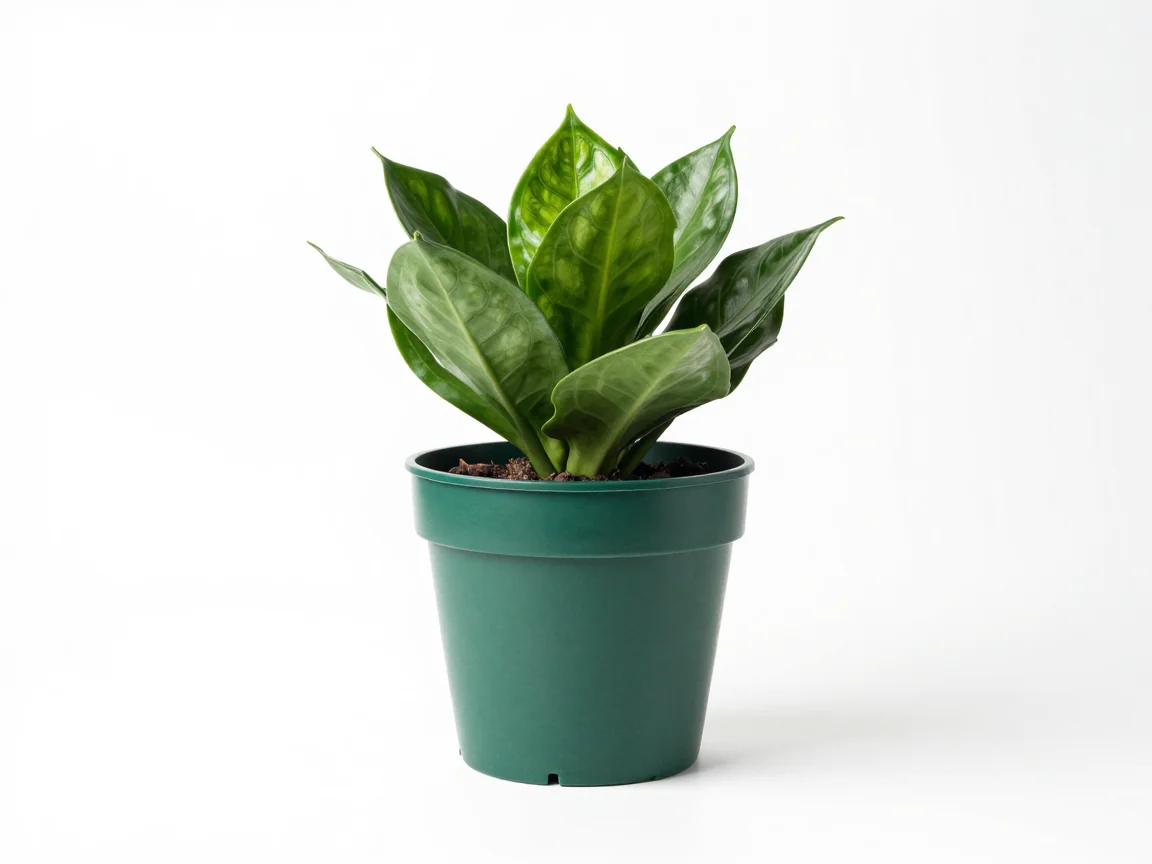
White catalog background
Choose white as the export background after reviewing the cutout.


Add white backgrounds in bulk after reviewing each cutout. Choose consistent canvas margins and download a coordinated set of PNG product photos.
Drop up to 20 images here, or choose files
JPG, PNG or WebP · up to 5 MB and 16 MP per imageUploaded images use shareable media links. Avoid uploading sensitive images.
A white export fills the empty area around the cutout; it does not mean the original backdrop was removed correctly. First compare the original and result, then inspect whether old background remains along an edge or inside an opening.
The white-background preset selects white for export. Preview backgrounds are inspection aids and can be changed without deciding the final file color. Use a darker preview when pale materials are hard to distinguish from white.
A white shoe, cream vase, or pale fabric can blend into both the source and final background. Review stitching, buttons, highlights, and the silhouette. Keep the original if the cutout loses a useful detail.
A solid white export is not a method for repairing missing pixels. Changing the background cannot restore a removed white part. Reconsider the source or processing choice if the result changes the way the product looks.
Choose a common canvas and useful margin. Contain fitting preserves proportions and keeps the whole product inside the frame. It can add empty space when source aspect ratios differ.
Review the images as a set before delivery. The same frame can make a short accessory appear smaller than a tall bottle; consistent perceived scale is a visual check, not something equal dimensions guarantee. Downloads are PNG, including solid-white versions.
Upload up to 20 JPG, PNG, or WebP images. Each AI source must be no larger than 5 MB or 16 megapixels and 256–4096 pixels on each side. Check the available trial or full credit quote before confirming removal.
Processing time varies. Follow each image status and leave the page open during upload. A confirmed failure can be retried after its cause is corrected; a submission being checked should not be sent again because it is slower than another image.
Use complete, clear photographs with identifiable names. Include pale materials in the first review batch.
Review the available trial or Use credits quote. Each selected image is processed independently.
Check white details on a dark preview, then select white export and consistent margins.
Select finished images and use a ZIP for a set. Reduce the selection if the download-size limit is exceeded.
Changing an existing cutout to a white export is local. Credits apply to the removal request shown in the quote, not each later color change or download. A fresh AI removal is a different action.
This tool downloads PNG, including solid-white versions. Check the destination’s required format, dimensions, and rules. The workflow does not certify marketplace compliance or convert the download to JPEG.
No. Trial processing is limited by the allowance displayed in the workspace. Use credits shows a price before confirmation. A white export does not renew a used trial allowance.
The export color sits behind the cutout and cannot recover a removed foreground detail. Compare with the original on a dark preview. A sharper, more contrasting source may be more useful than repeating the image unchanged.
Choose white as the export background after reviewing the cutout.
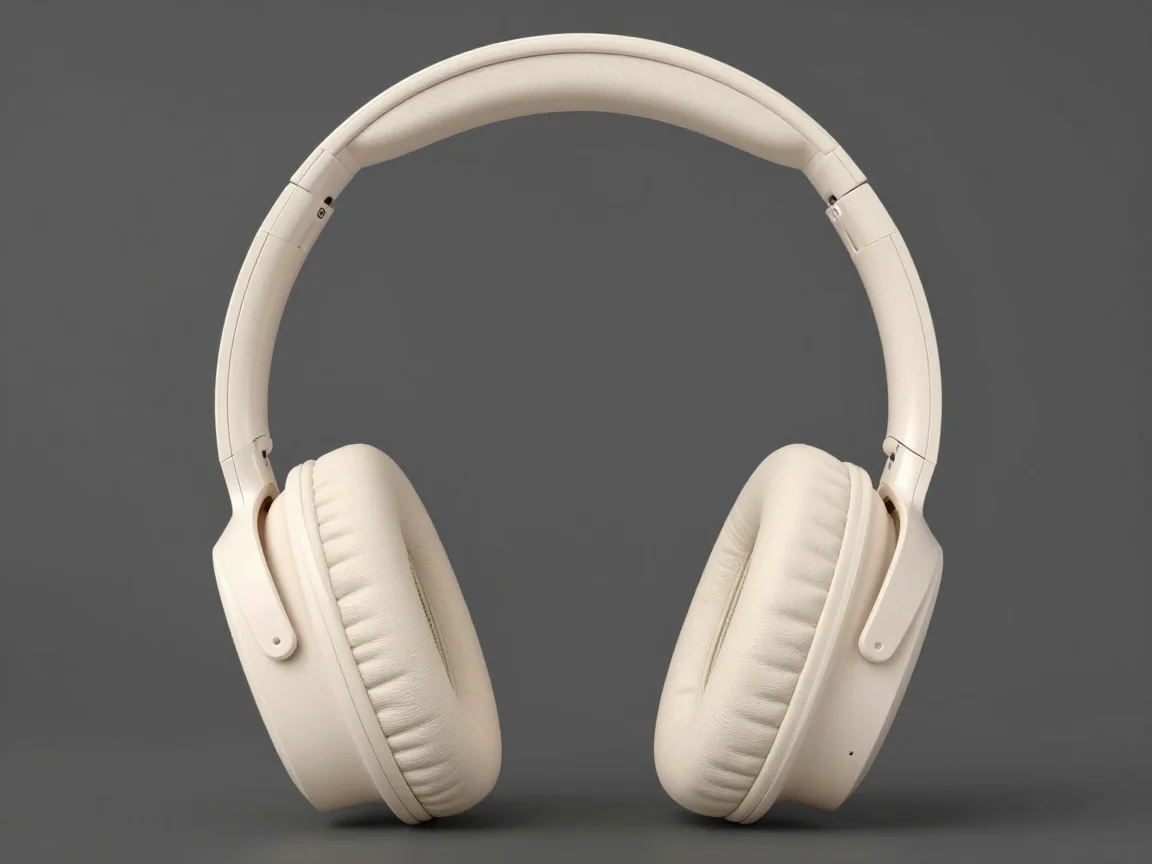
Check pale materials against a contrasting preview before saving a white-background version.
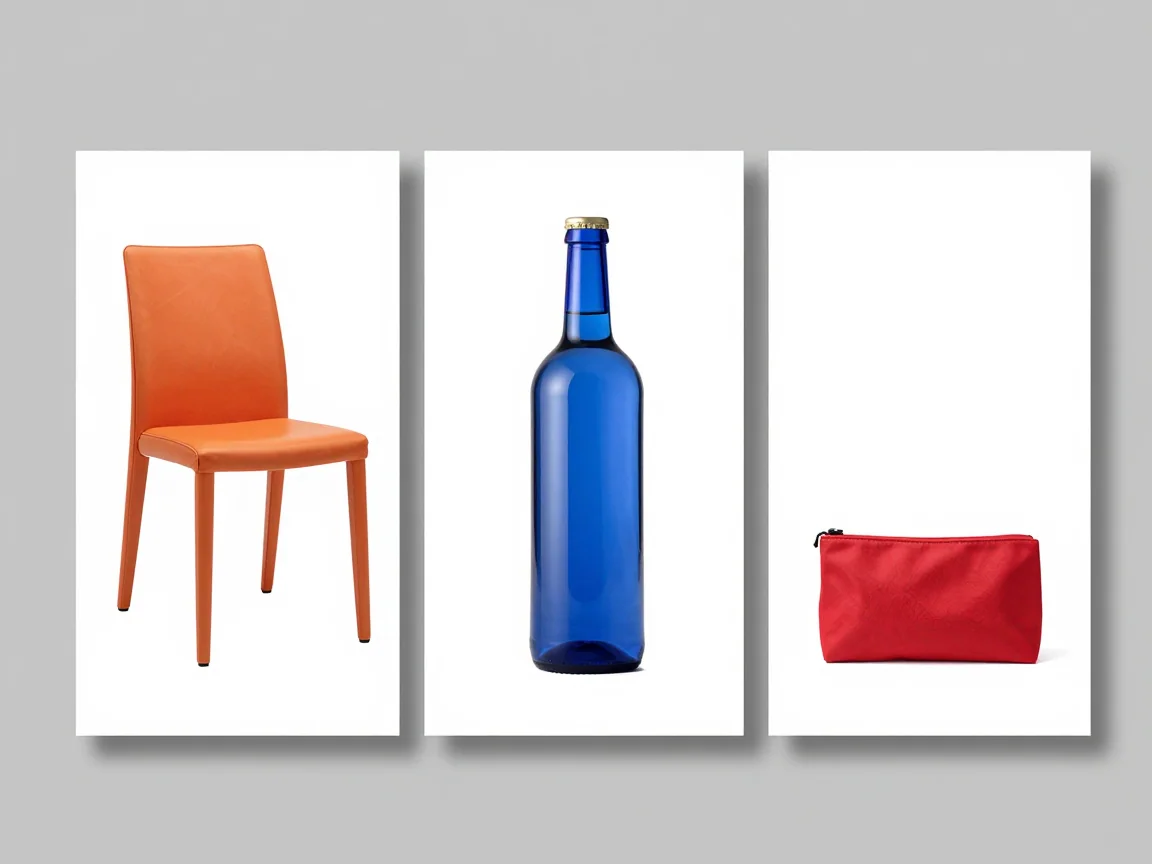
Contain fitting keeps the whole product inside the chosen canvas.
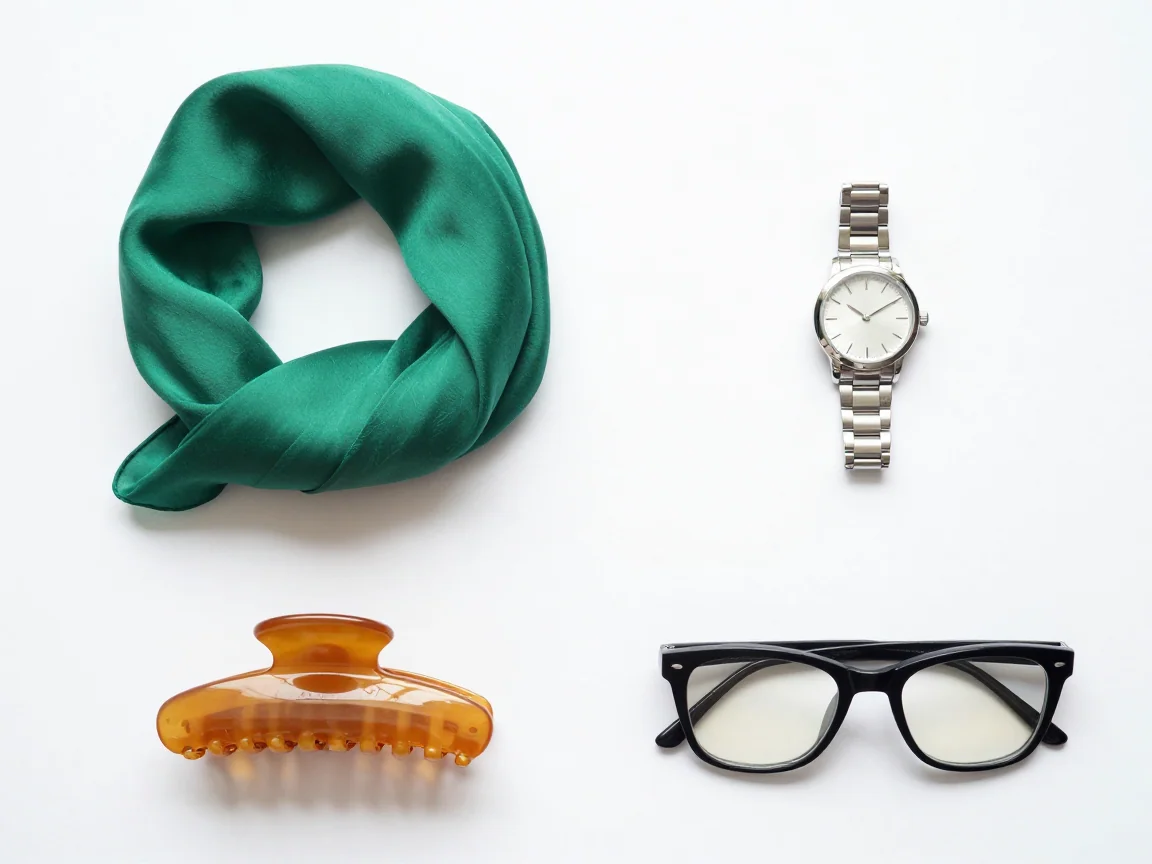
Inspect the complete set together for inconsistent scale, accidental cropping, and leftover background edges.
Use the product background remover to process a photo set, inspect handles and fine edges, then export transparent PNGs with consistent product framing.
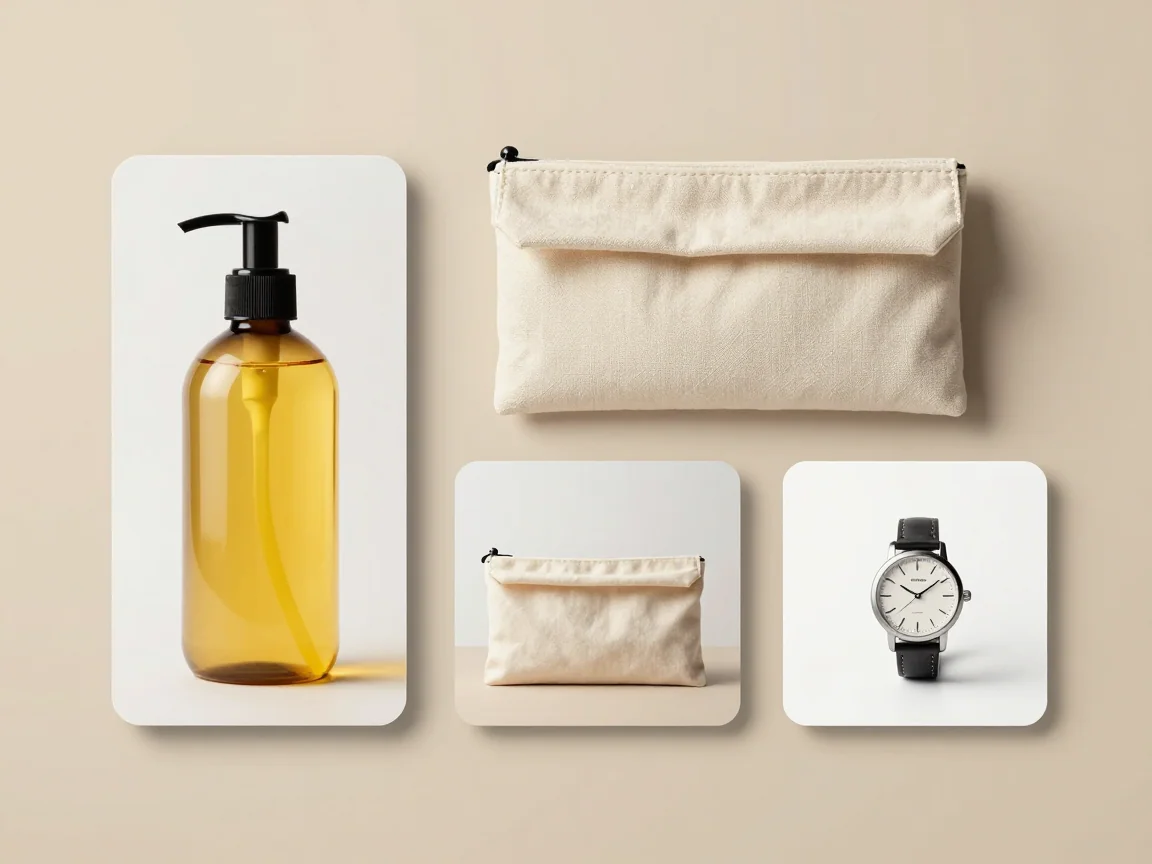
Use the bulk image resizer on your device. Fit multiple images into a shared canvas, preserve proportions, choose margins, and download PNGs without AI credits.
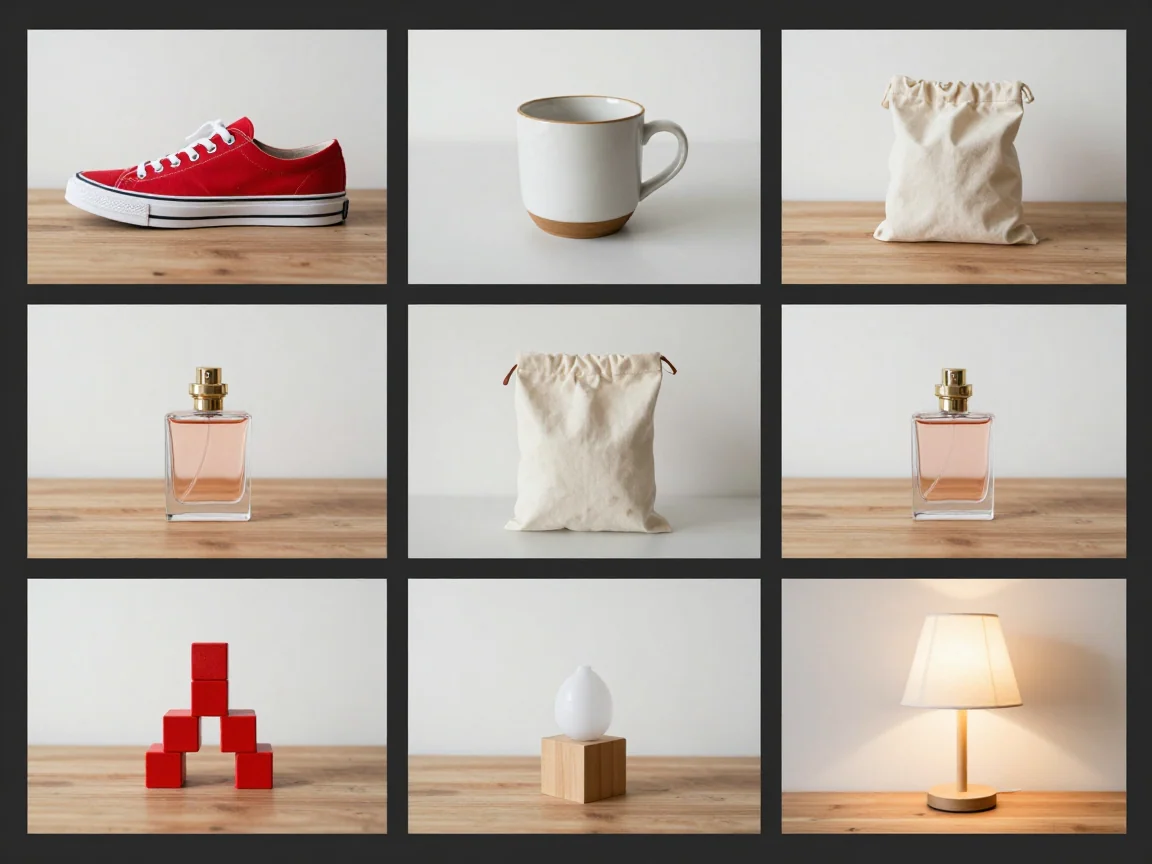
Use a bulk background remover for product photo sets. Review each cutout, choose a shared canvas and background, then download selected PNGs or a ZIP.