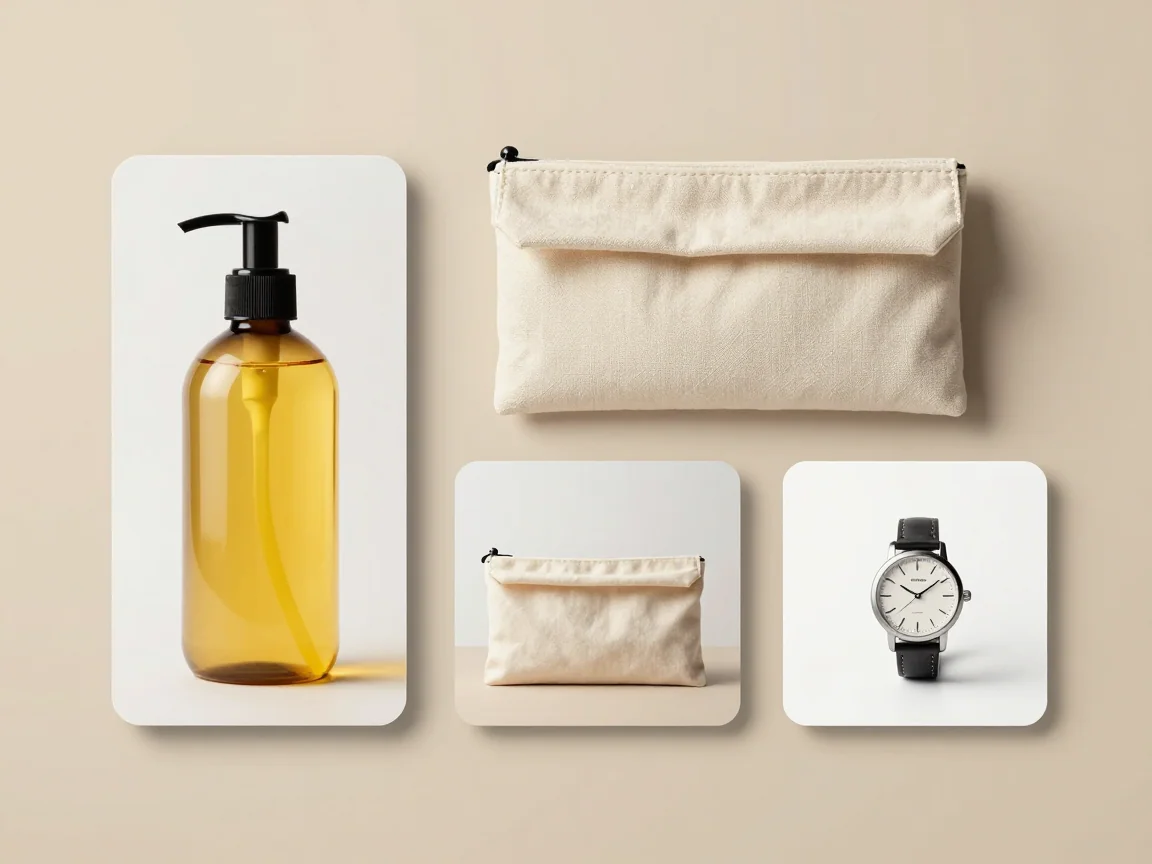
Different source proportions
A shared canvas can contain different source proportions without forcing every image into the same crop.


Resize multiple images on your device without uploads or AI credits. Preserve proportions, choose canvas margins, and download transparent or solid-color PNGs.
Drop up to 20 images here, or choose files
JPG, PNG or WebP · up to 5 MB and 16 MP per imageResizing runs on your device. No AI credits are used.
Use this tool when the source already has the background you want, or when a finished cutout needs another frame. Resizing does not remove a backdrop, identify a foreground subject, or repair a blurred photo.
Select up to 20 JPG, PNG, or WebP files, each up to 5 MB, 16 megapixels, and 4096 pixels per side. This local workflow can accept smaller images than the AI tool’s 256-pixel minimum. A larger frame does not recreate missing source detail.
Contain fitting scales proportionally so the complete source fits inside the canvas. When a portrait photo enters a landscape frame, extra room may appear at the sides. That space is expected; stretching would change the subject’s shape.
A margin reserves room between the fitted image and canvas edge. Check the smallest output dimension before choosing a large margin. If the settings leave no useful drawing area, reduce the margin or choose another canvas size.
Transparent PNG preserves empty areas around a transparent source. A solid export color fills the available background. If the original still has an opaque backdrop, resizing keeps those original pixels; selecting transparency does not remove them.
Use the product background remover first when the subject needs separating, then return here for size-only delivery. The export is PNG whether you choose transparency, white, or another solid color.
The current browser processes the files on this device. No AI quote or credits are needed, but browser memory and the number of large images can affect the wait. Keep the page open until you have saved your files.
Preview the dimensions before downloading selected images or a ZIP. If the browser cannot prepare an archive, or the size-limit message asks for a smaller set, reduce the selection and download in parts. Keep the originals for another delivery size.
Add originals or finished cutouts. Choose complete, recognizable files rather than repeated copies.
Choose the dimensions needed by the destination and leave space around each source.
Check each fit. An opaque source backdrop remains part of the image even when you select a transparent canvas.
Save selected images or the set. Keep the page open until downloads finish and split oversized selections when needed.
No. This size-only workflow runs on your device and does not call AI removal. It needs no paid quote. Cloud background removal is a separate tool with its own allowance or credit price.
No. An opaque original background remains part of the image. Remove it with the product background remover first if you need an isolated subject, then resize the finished PNG.
A shared canvas aligns file dimensions. Source proportions and margins determine how large the subject appears. Inspect the set visually; a tall and a compact product can look different on identical canvases.
The resizer can scale or place the source but cannot recover absent detail. Check the intended viewing size and use a sharper original when an enlarged image looks soft.
A shared canvas can contain different source proportions without forcing every image into the same crop.
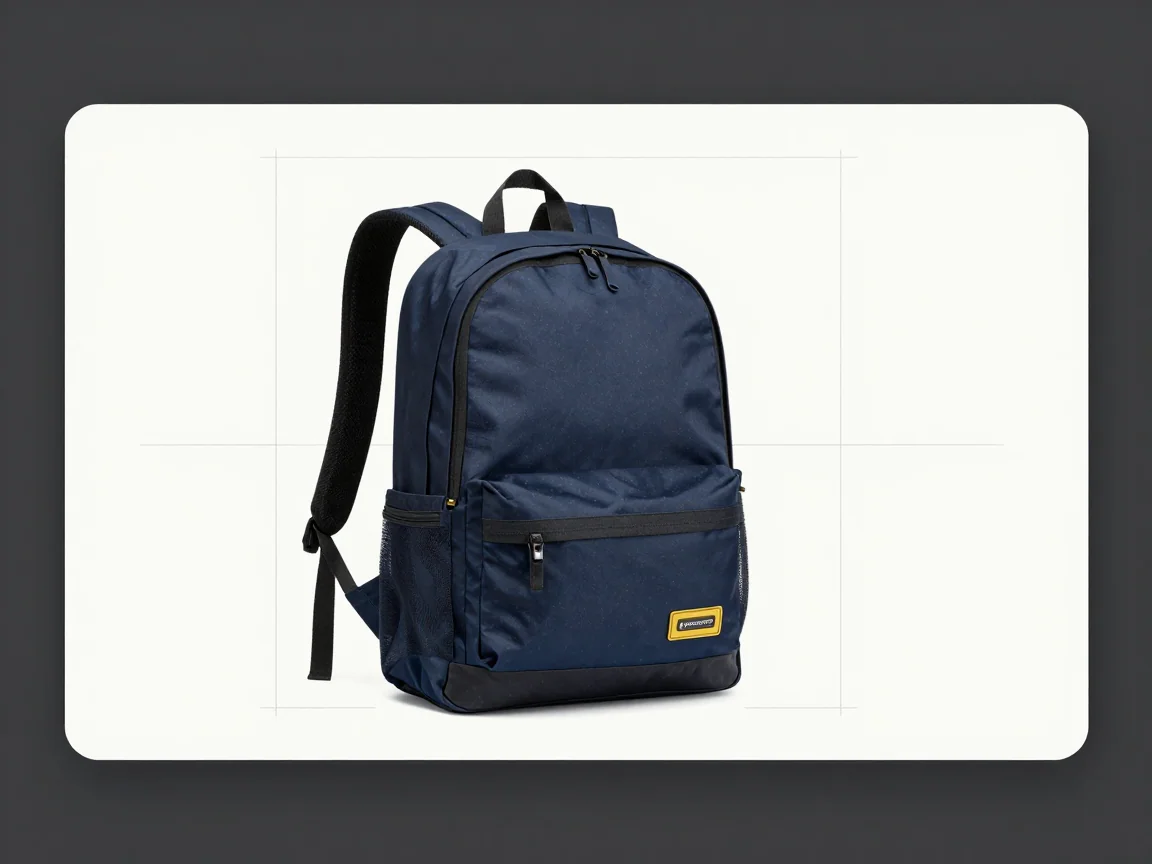
Fit the image within the canvas instead of stretching the subject to fill it.
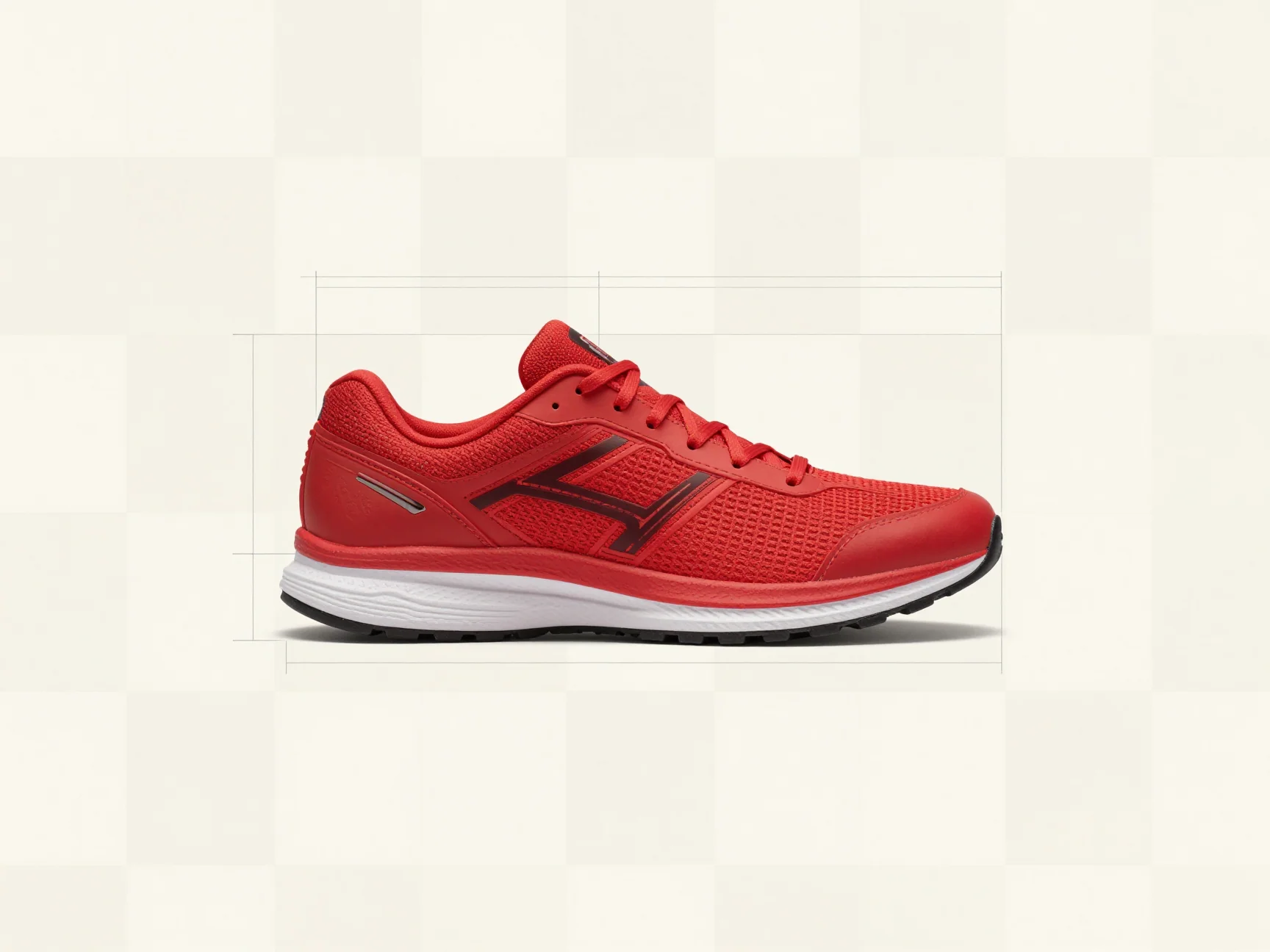
Choose enough margin to keep the subject clear of the output edge.
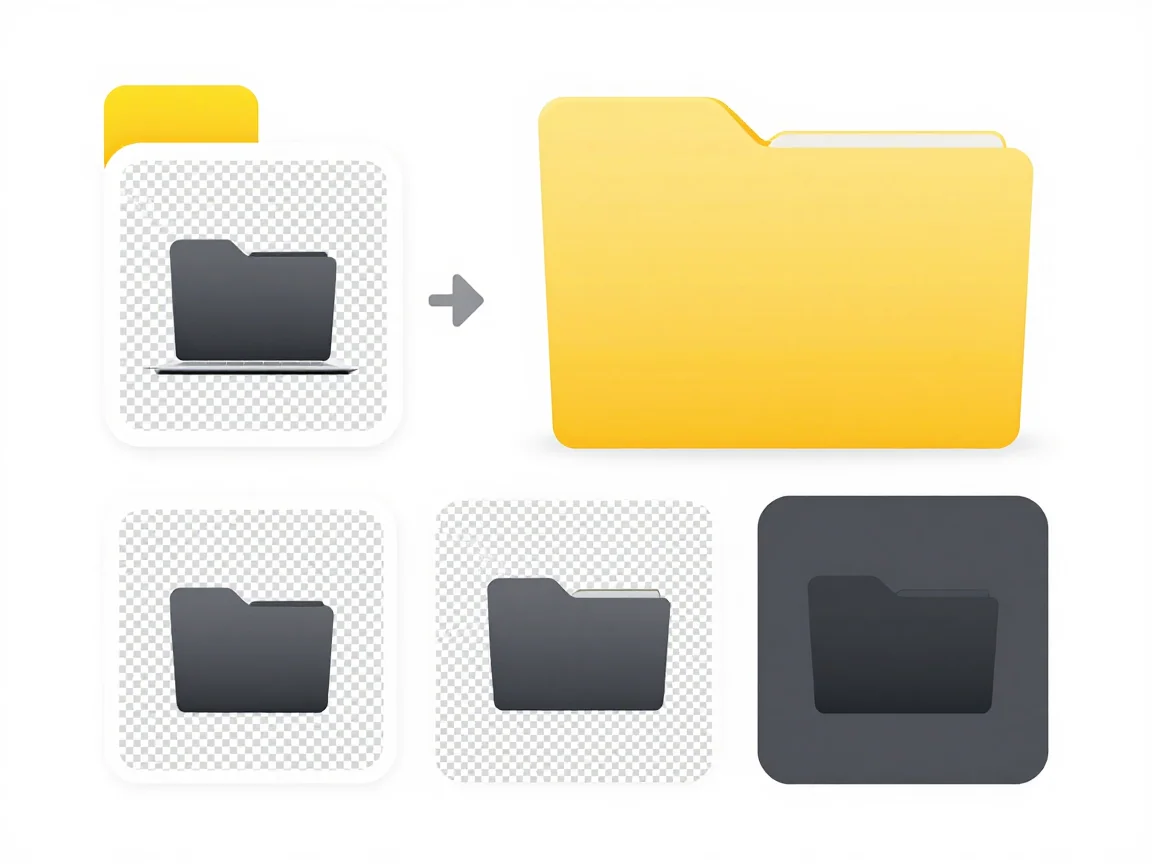
Preview your chosen background and canvas before downloading the resized set.
Use the product background remover to process a photo set, inspect handles and fine edges, then export transparent PNGs with consistent product framing.
Add white backgrounds in bulk after AI removal. Review pale products, set consistent canvas margins, and download a coordinated set of PNG images.
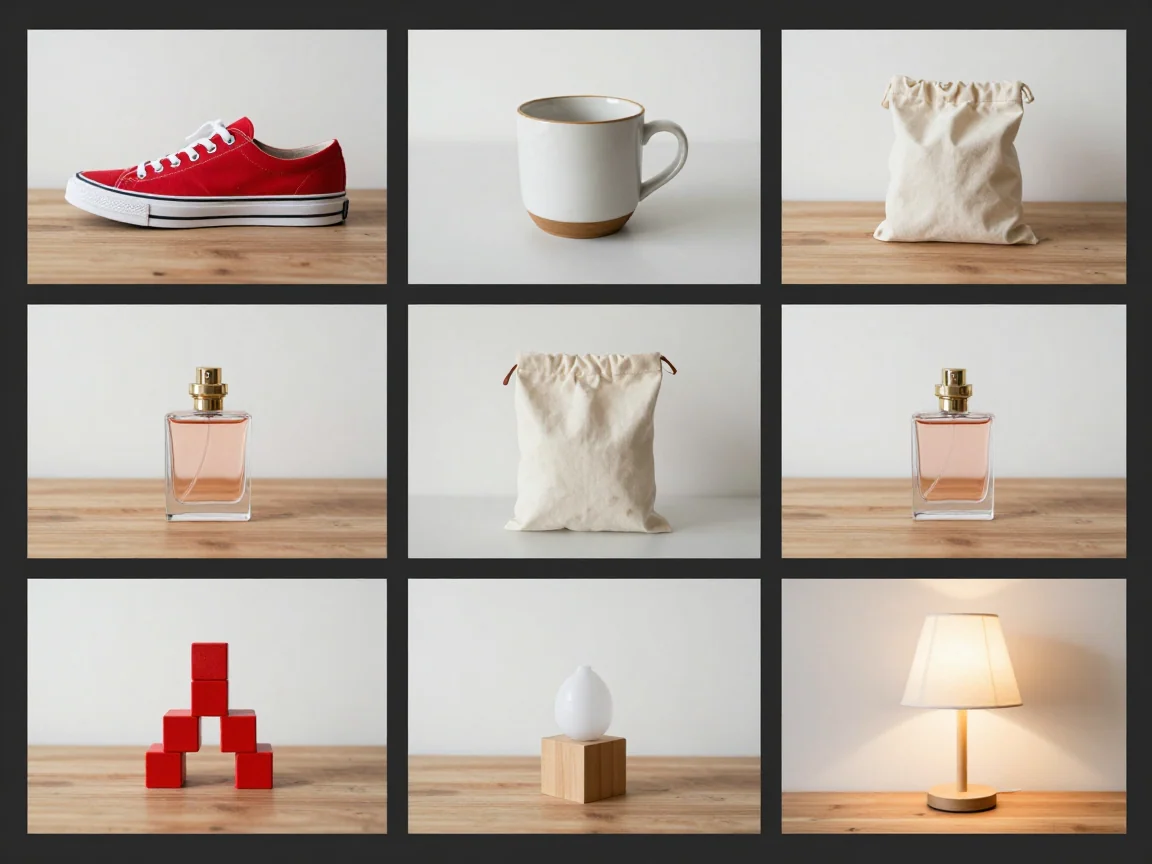
Use a bulk background remover for product photo sets. Review each cutout, choose a shared canvas and background, then download selected PNGs or a ZIP.