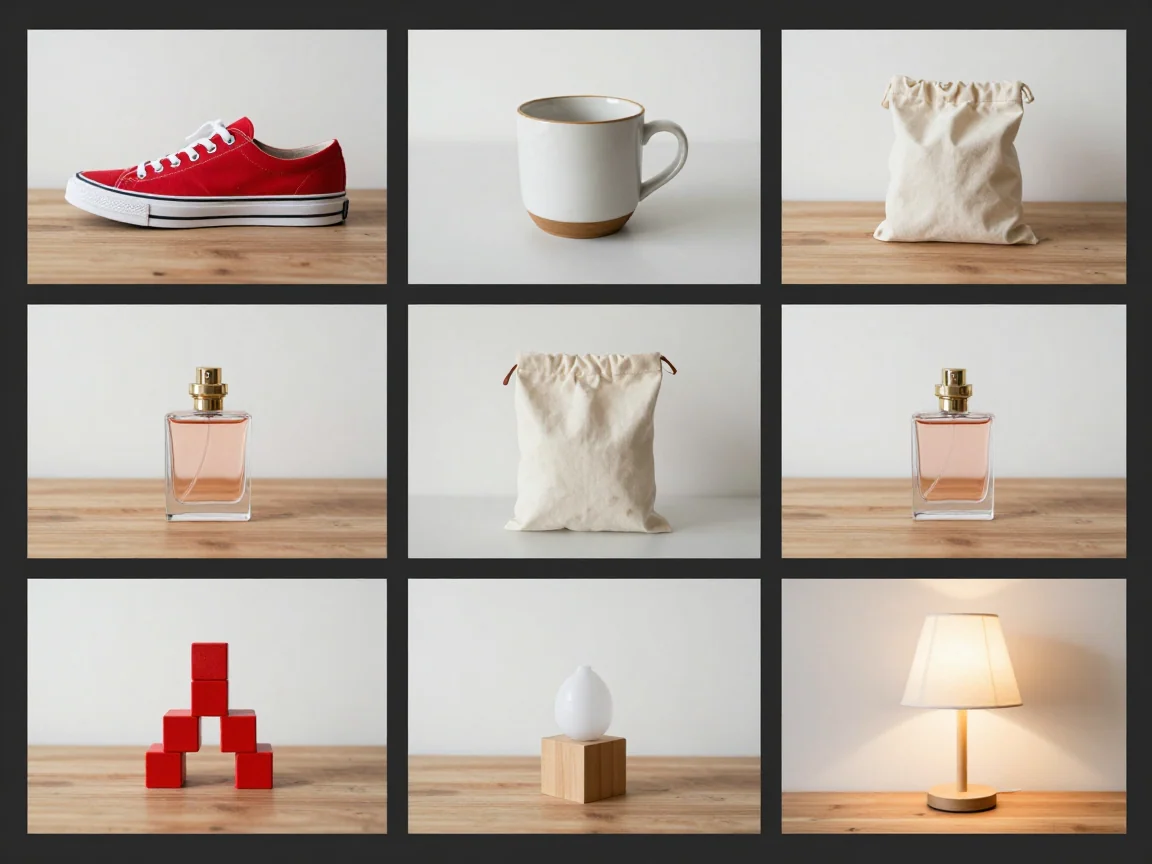
Mixed product photo inputs
Start with a manageable batch of clear product photos; each image is processed independently.


Remove image backgrounds. Guests: 3 images per batch; free accounts: 5; paid accounts: 100. Processing uses available credits. Review the credit quote before processing. Earn free credits by signing up and checking in.
Drop up to 3 images here, or choose files
JPG, PNG or WebP · up to 15 MB and 16 MP per image · large files are compressed before uploadUploaded images use shareable media links. Avoid uploading sensitive images.
Start with a manageable batch of clear product photos; each image is processed independently.
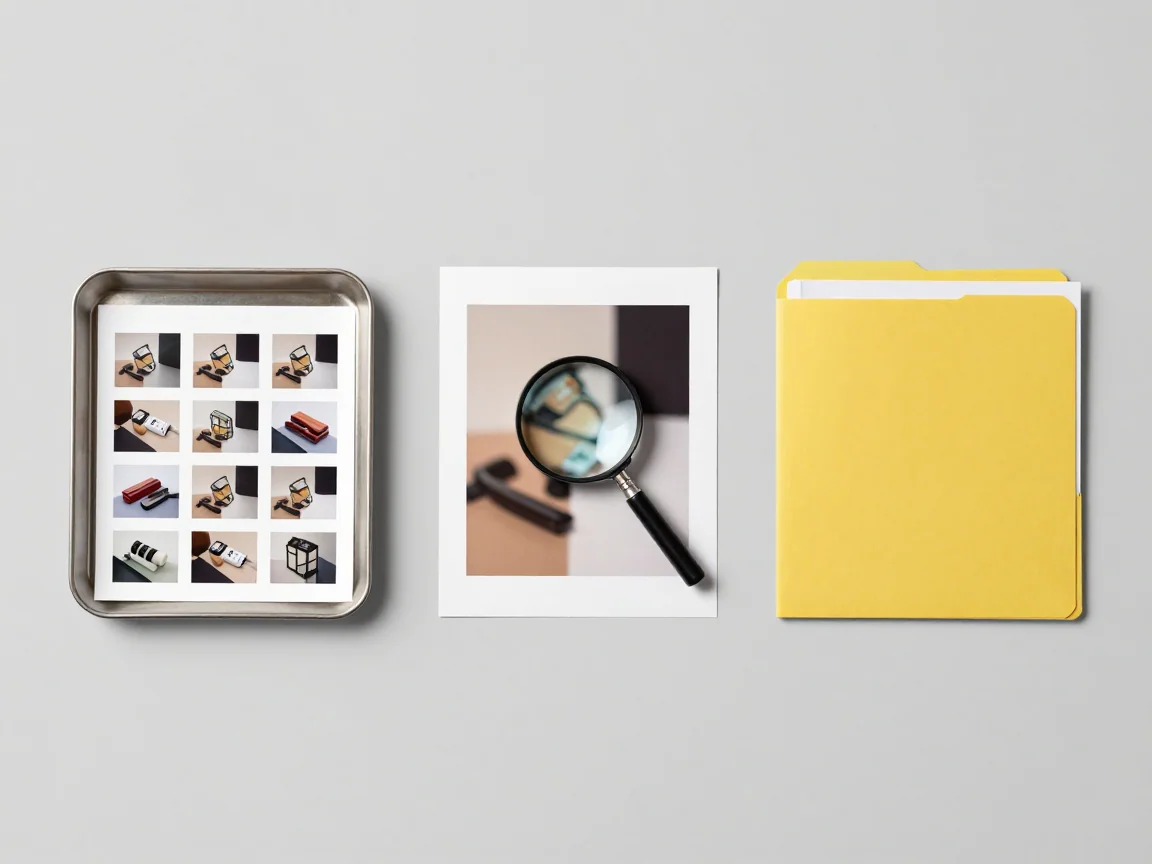
Review each cutout before choosing the finished images for a ZIP download.
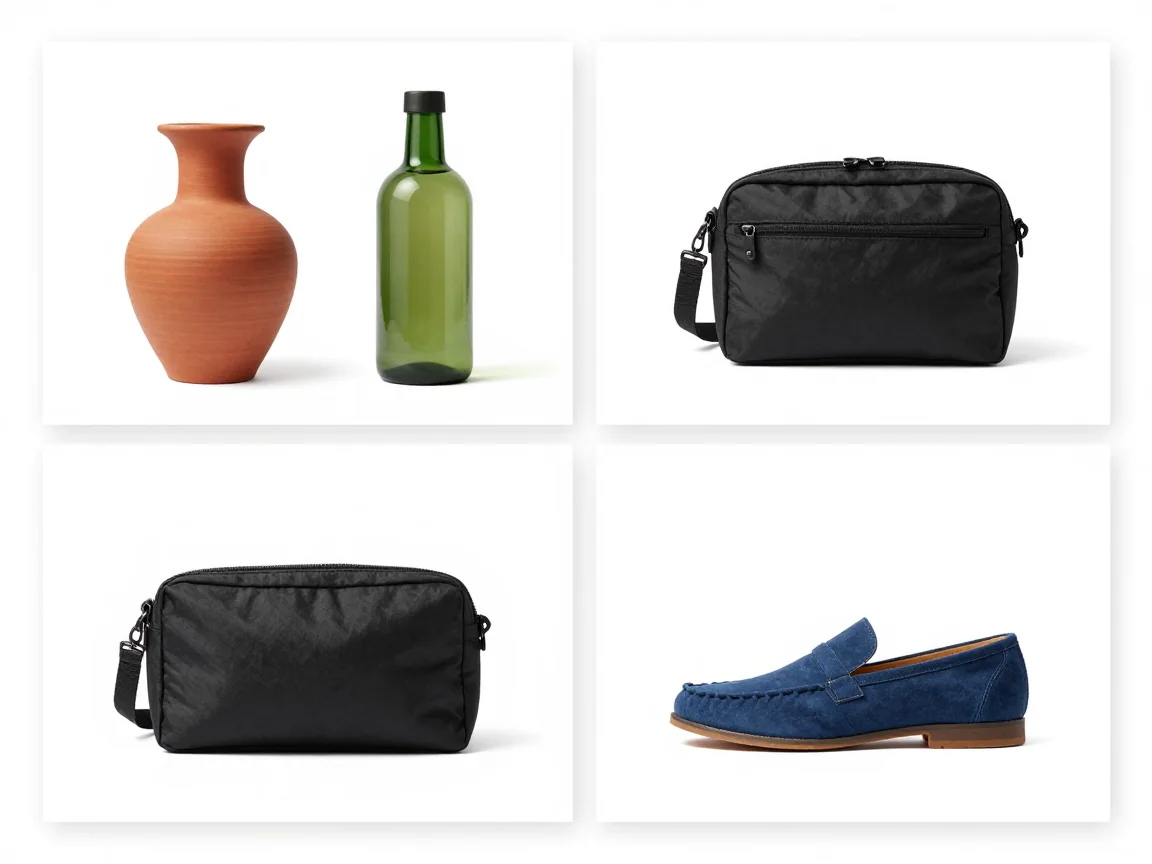
A common canvas and margin can align a set without stretching the products.
Keep source photos and finished PNG files organized so a batch can be checked again later.
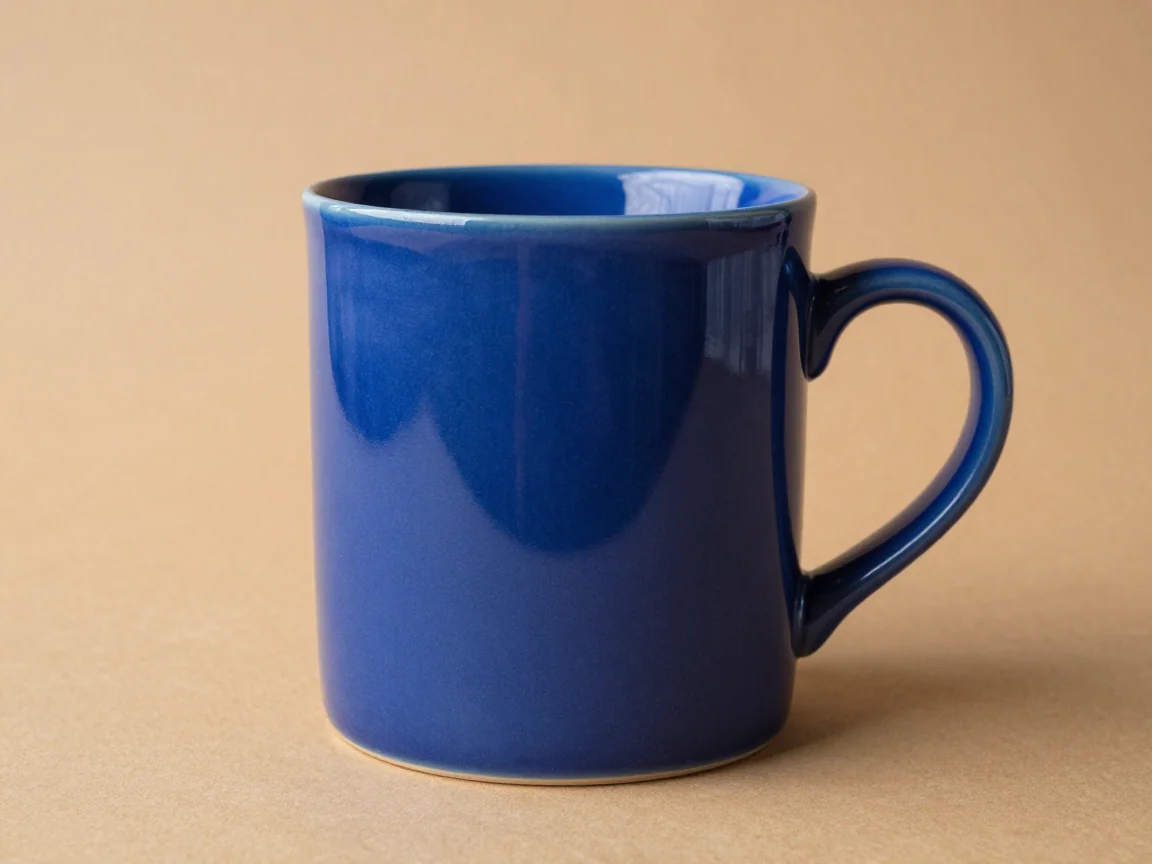
Use the product background remover to process a photo set, inspect handles and fine edges, then export transparent PNGs with consistent product framing.
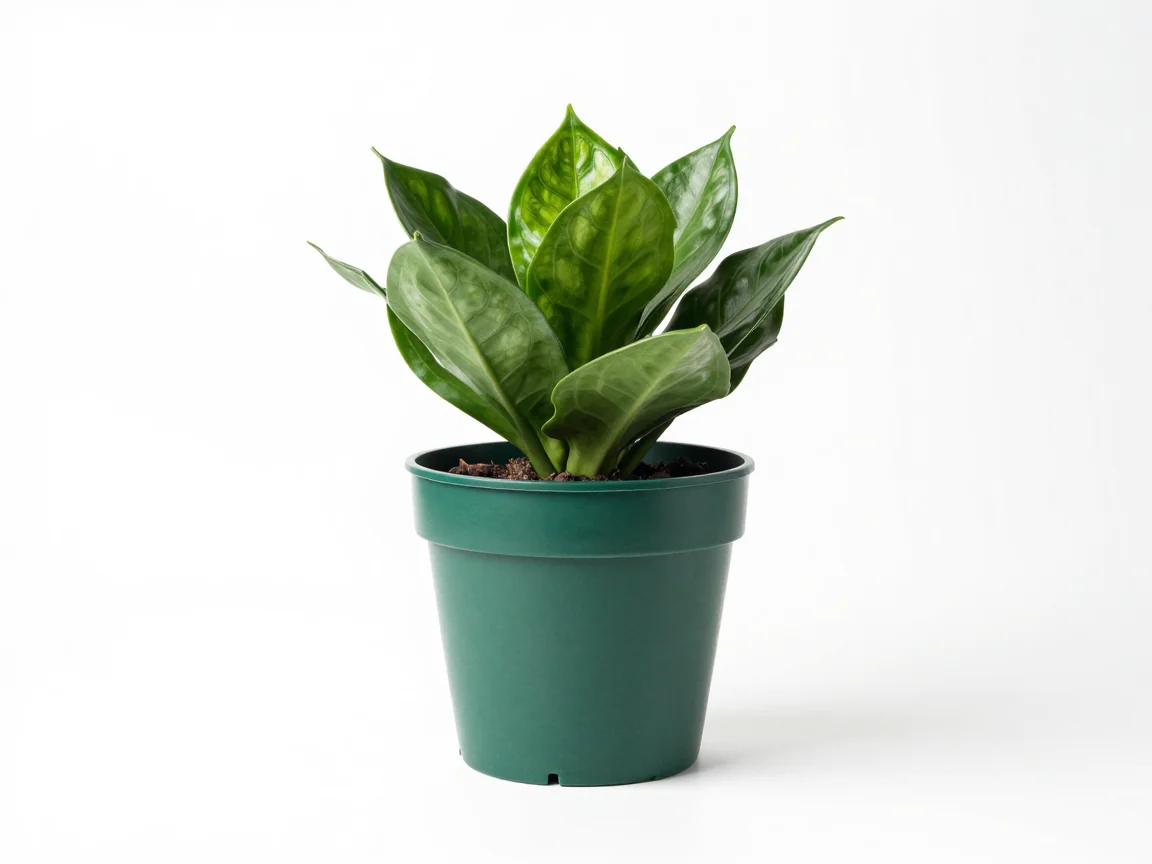
Add white backgrounds in bulk after AI removal. Review pale products, set consistent canvas margins, and download a coordinated set of PNG images.
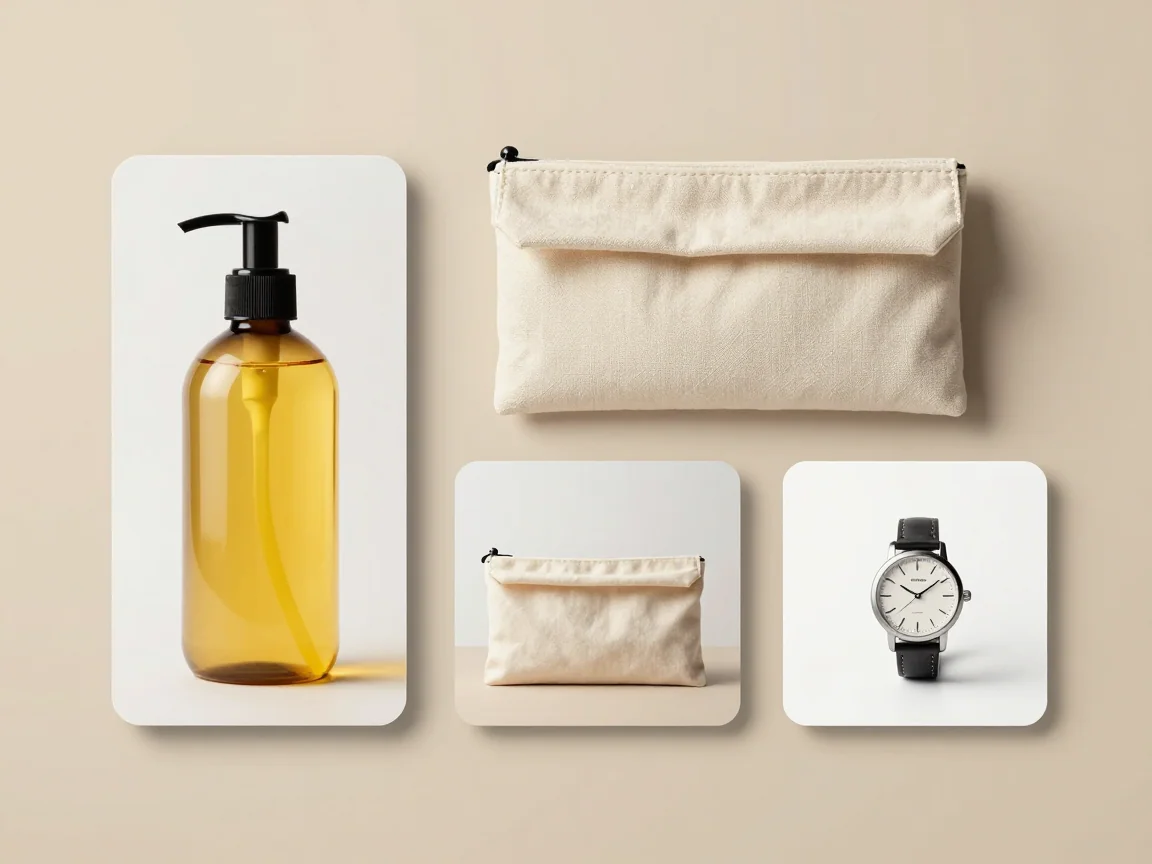
Use the bulk image resizer on your device. Fit multiple images into a shared canvas, preserve proportions, choose margins, and download PNGs without AI credits.
Use the product background remover when handles, straps, packaging edges, or openings need careful review. Start with the cleanest original available; background removal does not repair a product, generate missing parts, or replace the appearance of the item.
Prepare a coordinated white-background setChoose white for the final background, then apply a shared canvas and margin. Check pale products on a contrasting preview first. The preview color helps you inspect an edge; the export background determines the pixels in the downloaded PNG.
Match dimensions without another AI taskUse the bulk image resizer when the backgrounds are already suitable and only the delivery size needs changing. This separate tool works on your device, fits the original proportionally, and does not upload images or spend AI credits.
Guests: 3 images per batch; free accounts: 5; paid accounts: 100. Processing uses available credits. JPG, PNG or WebP · up to 15 MB and 16 MP per image · large files are compressed before upload. Review the credit quote before processing. Earn free credits by signing up and checking in.
Select the available Free trial allowance or Use credits. Review the total shown for the selected images before confirming. A batch contains separate image tasks, so a difficult photo does not turn the other images into a combined output.
Use the original/result comparison and zoom. Check holes, straps, pale details, and fine edges on light and dark previews. Choose a transparent, white, or custom solid background, and set a canvas only if the delivery needs one.
Select finished images for PNG or ZIP delivery. Keep proportions with contain fitting and leave enough margin. If the download exceeds the displayed size limit, select fewer images and download the set in parts.
A tall bottle, a wide pouch, and a compact accessory should not be forced into the same crop. Review the complete subject first, then use a common outer canvas to align the set. Check the perceived product scale together instead of assuming equal dimensions create equal visual size.
A consistent background for listingsUse a single background color for a coordinated presentation, but check the destination’s own image requirements. This tool prepares PNG images; it does not certify marketplace compliance, create a required JPEG, or guarantee that a listing platform will accept the file.
A second delivery at another sizeWhen a design needs a different frame, adjust the local export or use the resizer rather than starting the same AI removal again. A larger canvas can add room around the subject, but it cannot recover detail absent from the original.
Guests: 3 images per batch; free accounts: 5; paid accounts: 100. Processing uses available credits. Review the credit quote before processing. Earn free credits by signing up and checking in. Changing a finished image's background color or canvas and downloading it are local export actions, not new AI tasks.
There is no fixed completion time. Upload size, queue conditions, and the individual image affect the wait. Watch each image status rather than treating the set as one timer. Keep the page open during upload; when a submission is being checked, wait for its status before creating another task.
Inspect the error for that image. Correct an unsupported file or size issue before trying again, and use retry for a clearly failed task. A pending or unknown submission is different from a confirmed failure. Completed images can still be reviewed and downloaded while another item needs attention.
No automatic cutout is a substitute for inspection. White products, reflective materials, mesh, and partly hidden edges can be difficult. Check the original beside the result and look inside openings as well as around the outside contour. Use the original again if an important detail is missing.
Cloud processing uses uploaded media with shareable links. Anyone who has a public media link may be able to view it, so avoid confidential images. Uploads do not automatically become public examples. For size-only work, the separate local resizer does not upload the images.
Start with a representative batch and review the quote, edge quality, output dimensions, and final PNG background before preparing the rest of a catalog.
bulkbgremover.com · Updated