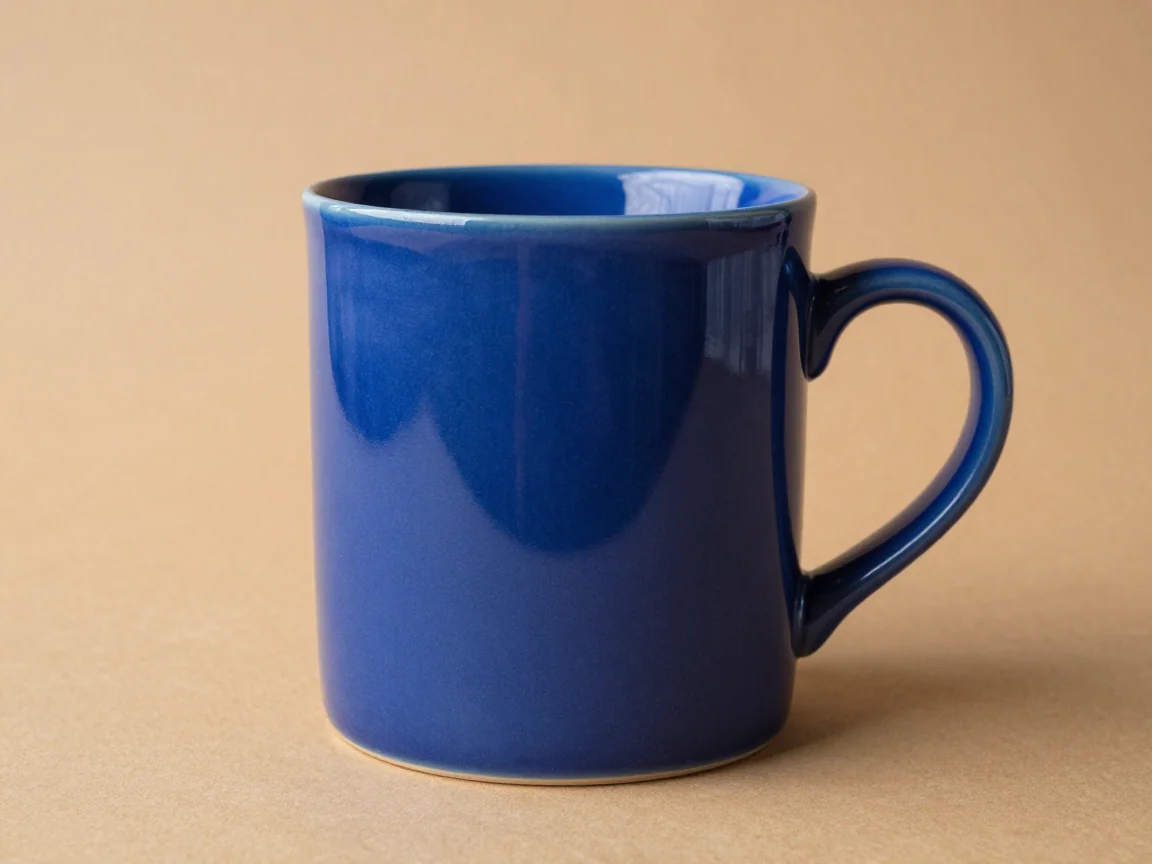
Handles and openings
Check openings and gaps as well as the outside contour of a product.


Use the product background remover for a set of catalog photos. Review handles, openings, and fine edges before exporting selected PNGs with consistent framing.
Drop up to 20 images here, or choose files
JPG, PNG or WebP · up to 5 MB and 16 MP per imageUploaded images use shareable media links. Avoid uploading sensitive images.
Choose sharp originals with the whole item in frame. Background removal cannot reconstruct a cropped handle, read blurred packaging, or reliably invent a hidden strap. Keep the original beside the finished image when those details matter.
AI input accepts JPG, PNG, and WebP up to 5 MB and 16 megapixels per file, with each side from 256 to 4096 pixels. Prepare oversized photos before upload. A small source will not become a detailed catalog image merely because the export canvas is larger.
A product outline has more than one boundary. Look inside a mug handle, between bag straps, around lace openings, and through gaps between parts. Those spaces may retain background or lose fine material even when the outside contour looks convincing.
Use both light and dark preview backgrounds. The inspection color is separate from the downloaded background. A dark preview can reveal a pale edge; a light preview can expose a dark fringe. Return to the original if an important product feature is missing.
Review the cutout first, then choose an output canvas and margin. Contain fitting preserves proportions and keeps the complete subject inside the frame. It is useful when a tall bottle and a wide wallet must share one delivery size.
Equal canvas dimensions do not automatically create equal-looking product scale. Check the selected set and adjust margins when appropriate. This tool does not certify listing rules, recolor merchandise, or create a required JPEG; downloads are PNG.
Each image has its own processing status. Review the total quote before confirming, then leave the page open during upload. Queue and image conditions affect the wait, so do not expect every photo to finish together.
Select completed images for download while investigating a clearly failed item. Correct a bad file or dimensions before retrying. If a submission is still being checked, wait for a known status before sending the same image again. A new removal request can be a new processing task.
Start with a small set containing the hardest materials, openings, and pale surfaces in your catalog. Keep recognizable source names.
Check the available Free trial allowance or Use credits quote for the batch. Payment choice is not a guarantee of different edge quality.
Compare original and result, zoom into small features, and use contrasting previews before choosing a final background.
Choose transparent or a solid background, keep proportions, and download selected PNGs or a ZIP. Split oversized downloads when prompted.
The batch workspace accepts up to 20 images within the displayed file limits. Processing remains a separate task for each image. A batch does not create a single collage, and one successful photo does not prove the other cutouts are ready.
Use the limited Free trial allowance when available. Use credits displays a quote before confirmation. Canvas, color, and download changes to a finished image are local export choices; starting another AI removal is a separate action.
Glass, reflections, translucent materials, mesh, and overlapping parts can be difficult. Inspect those areas and keep the original. Do not use a result that removes a product feature or changes how the item is represented.
Changing the export background or canvas of an existing cutout does not require another removal request. Use the dedicated white-background workflow for a consistent white set and focused framing guidance.
Check openings and gaps as well as the outside contour of a product.
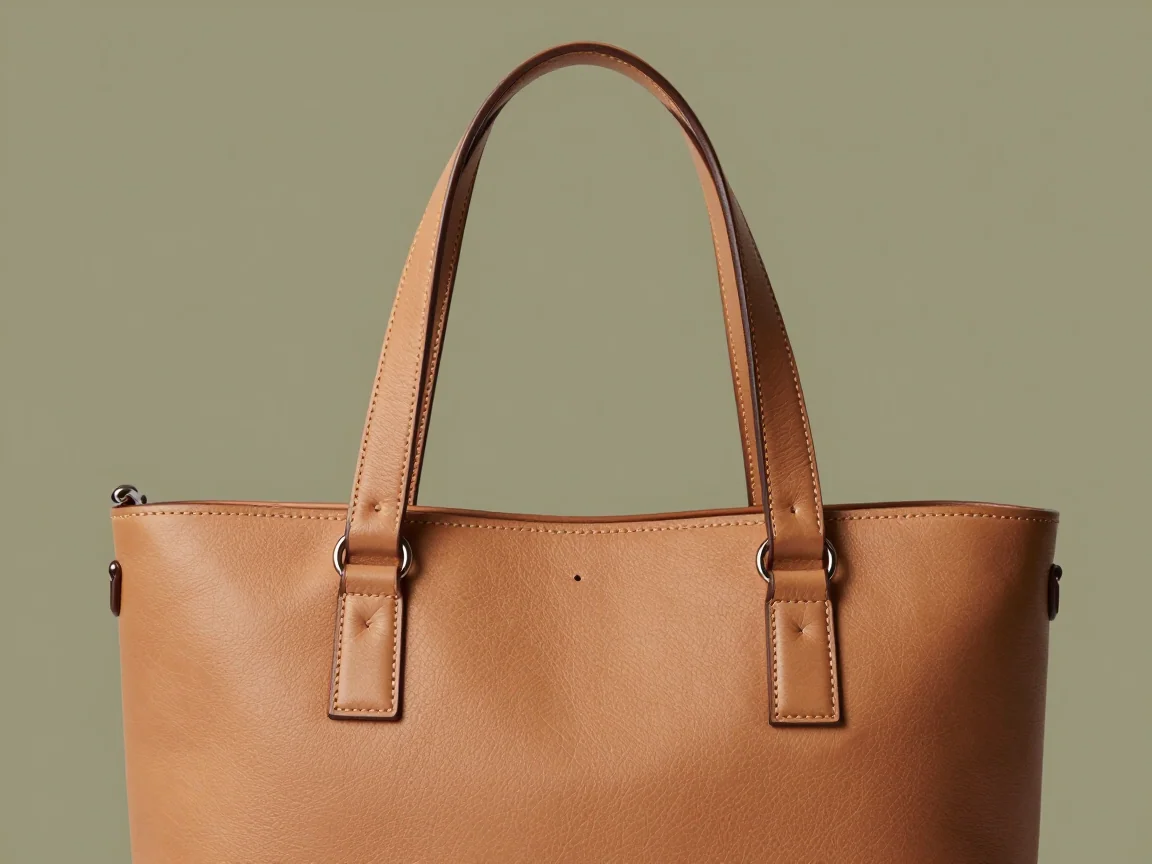
Thin straps and small hardware deserve a closer look before catalog export.
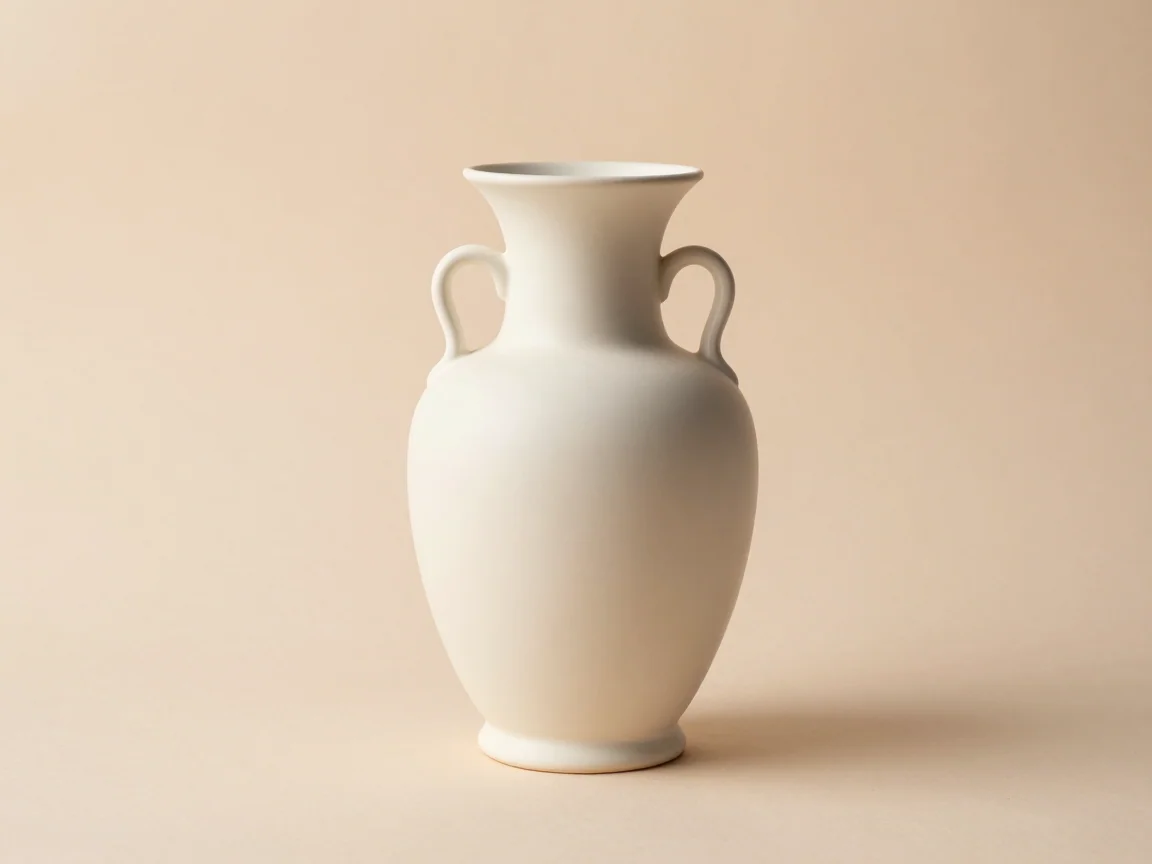
Use a darker preview to inspect the edge of a light-colored product.
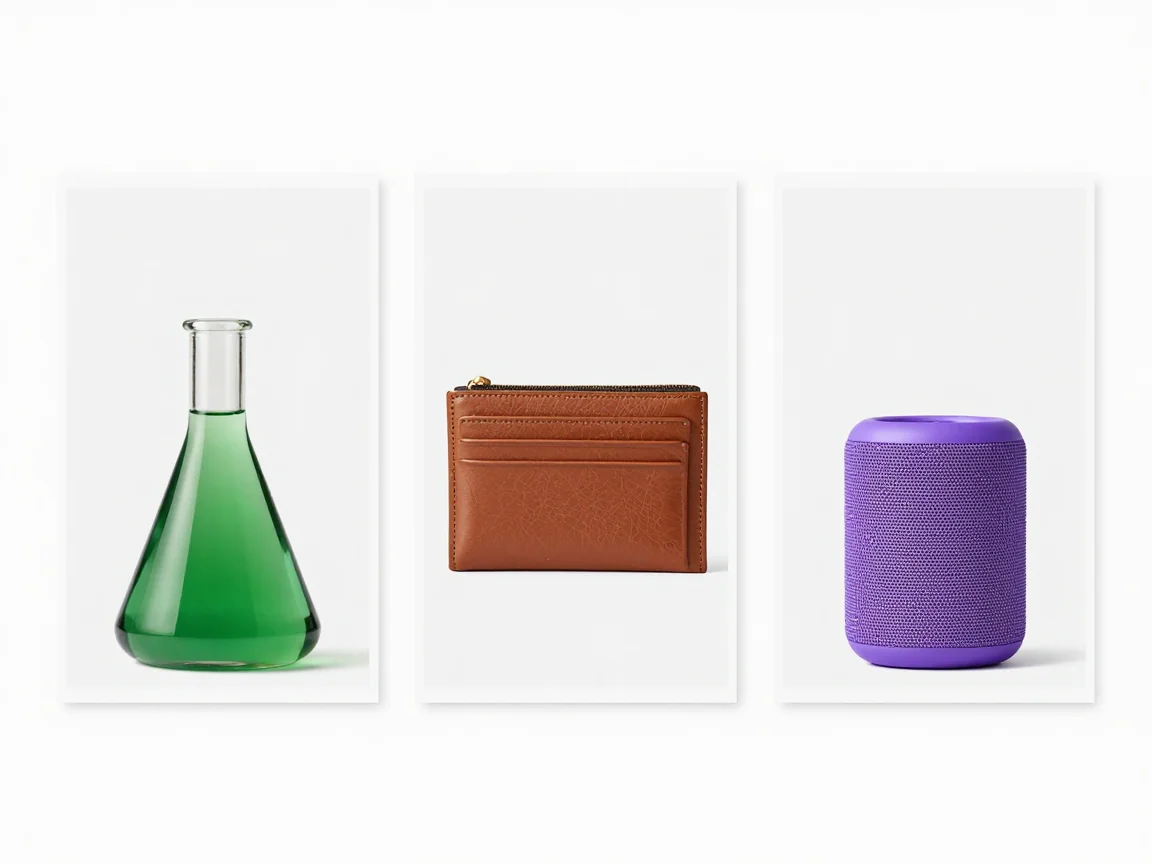
Keep each item proportional when applying one canvas size to a batch.
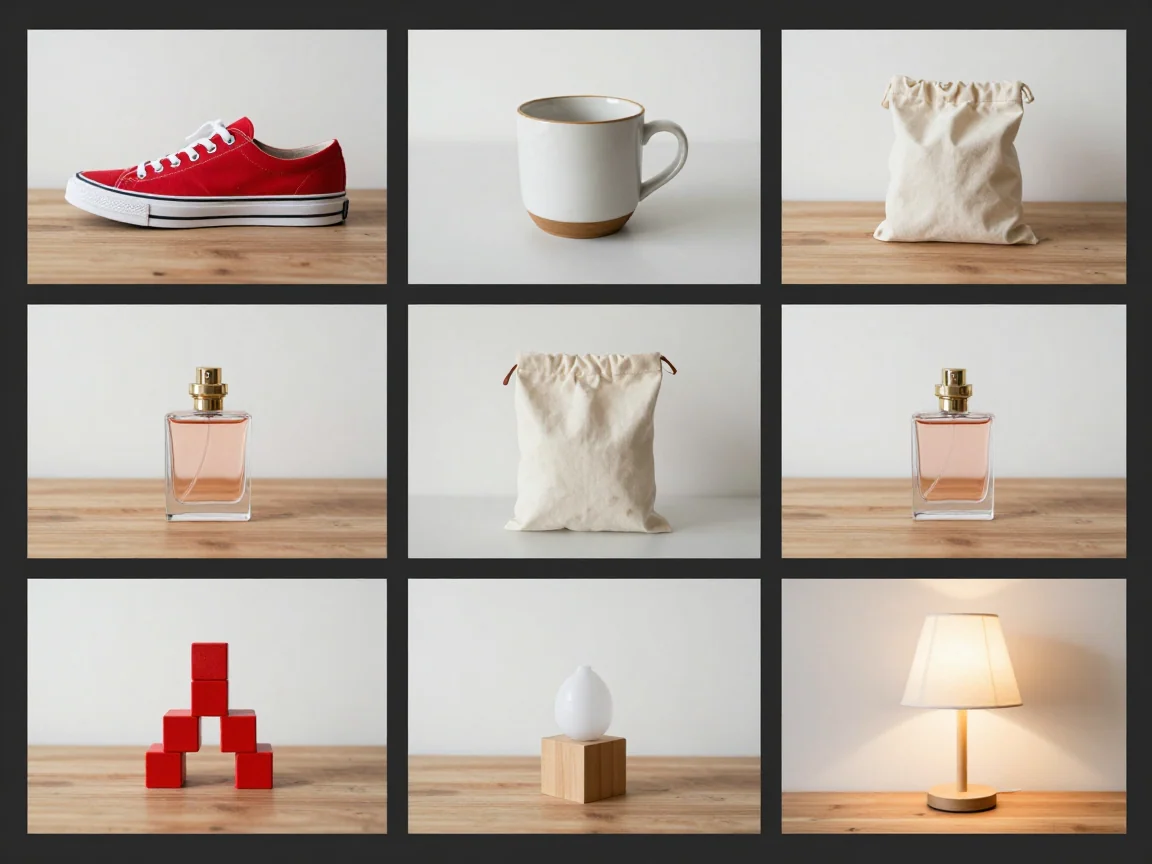
Use a bulk background remover for product photo sets. Review each cutout, choose a shared canvas and background, then download selected PNGs or a ZIP.
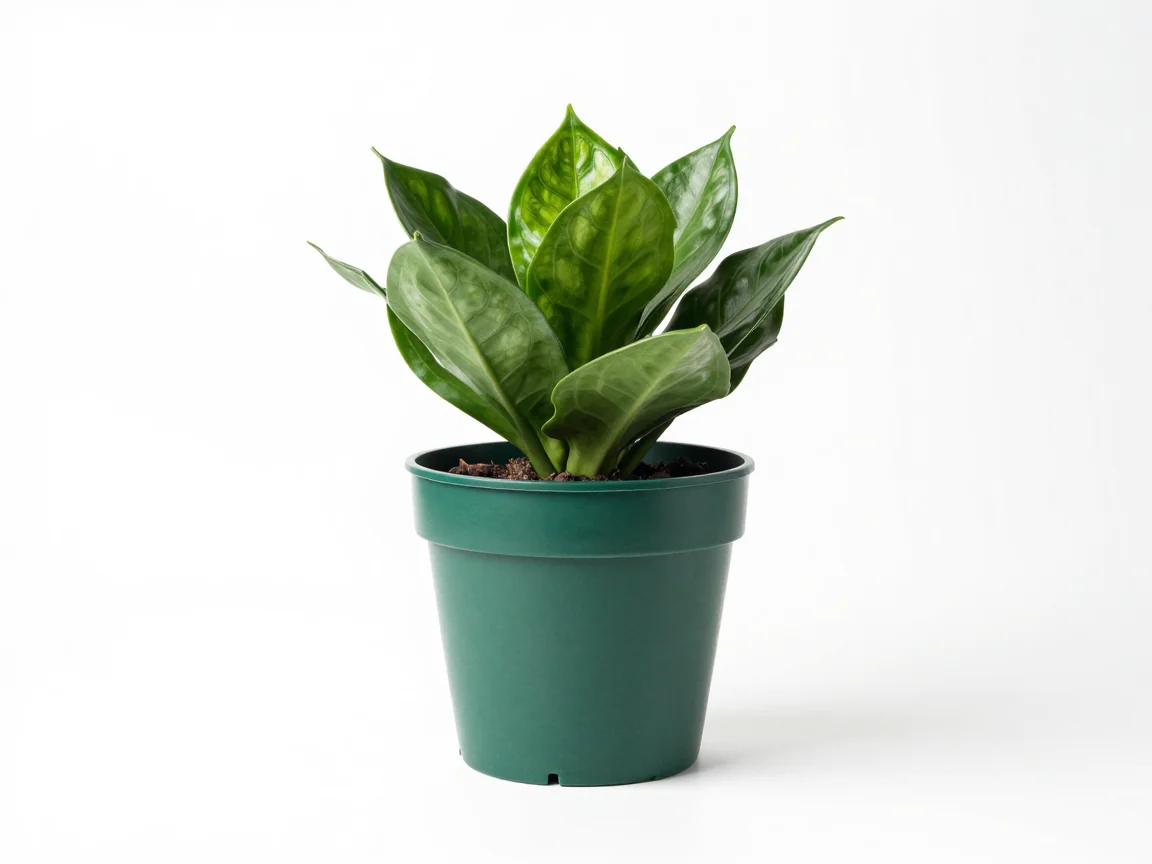
Add white backgrounds in bulk after AI removal. Review pale products, set consistent canvas margins, and download a coordinated set of PNG images.
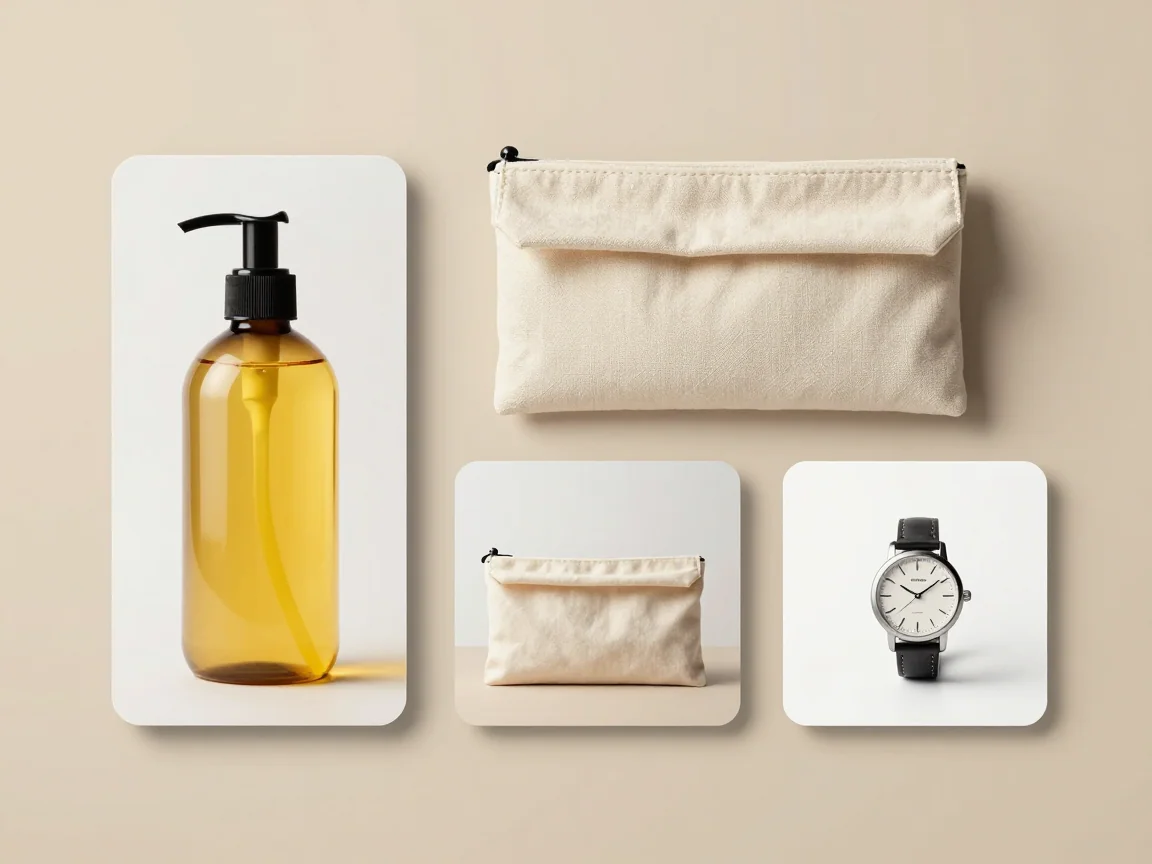
Use the bulk image resizer on your device. Fit multiple images into a shared canvas, preserve proportions, choose margins, and download PNGs without AI credits.