Bama Bound AI
Explore another AI video guide.


Loading history…
Oh You Can Make It Cap AI is a two-person video setup for an original, uncluttered reaction scene. Add one photo for the laughing responder and another for the person who turns with a handbag. Review the live quote before generating, then check both roles and the finished movement.
Use the two named photo selectors. Image 1 is the person who reacts with a restrained laugh; image 2 is the person who turns with the handbag. Choose different people for these roles, and use clear photos that show the appearance you want to retain.
The scene direction already set the action and the order of the image roles. If useful, add a short visual or style note in Optional visual notes. This is for your preferences, not for replacing the scene direction. The example studio and styling are creative direction, not requirements for your uploaded people.
This page sets the output duration to 8 seconds. Aspect ratio and output quality depend on live model availability. An audio toggle may be offered, but it does not promise a soundtrack. The model is currently a paid option; credits can change with the selected quality and media. Check the displayed Required Credits and your account access before choosing Generate. No free model, free-credit eligibility, fixed price, or fixed wait time is promised.
After choosing Generate, check status and results in History. When a video is complete, use its Download control. Review whether the people remain distinct, the roles are correct, appearances are recognizable, the handbag stays with the second person, and the turn and reaction read continuously. Check for unwanted people or limbs and a clear ending. Cropping, captions, and music are separate finishing work.
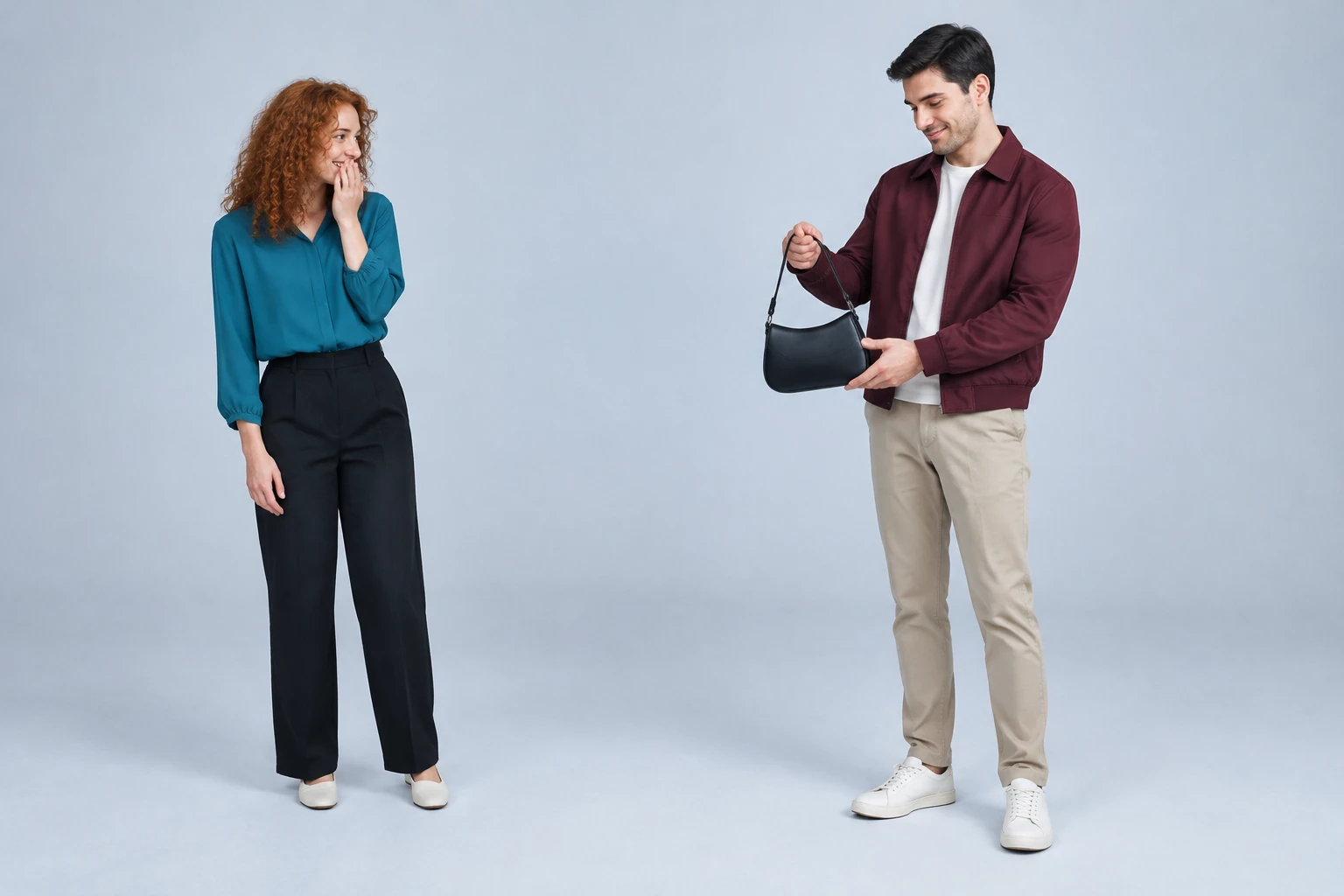
The scene is built around one clear exchange: the second person makes a small, confident handbag turn while the first person responds with a restrained laugh. Keep the setting original and uncluttered, with the people separated enough to read as two distinct silhouettes. Full-body framing gives the movement room, while readable hands and feet help make the turn clear. A calm ending makes the result easier to review. These are creative directions, not guarantees about the generated video.

The role descriptions guide the action; they do not prescribe who the uploaded people should look like. A fictional concept might show an adult woman with copper curls, a teal blouse, black trousers, and cream shoes as the laughing role, with an adult man in a burgundy jacket and beige trousers turning with a small black handbag. Do not treat those example identities or clothes as instructions for uploaded people. The scene should preserve each person's actual appearance and outfit.

Choose two individual portraits and keep their order clear: the laughing responder belongs in image 1, and the person making the handbag turn belongs in image 2. The page provides the scene direction for those roles; optional visual notes can describe a simple lighting or style preference. Review the result for recognizable appearances and a continuous exchange, rather than expecting an exact recreation of a particular clip.

In History, assess the completed video rather than assuming every requested detail will appear perfectly. Confirm that each person stays in the intended role, their faces and outfits remain recognizable, and the handbag remains with the turning person. Look for a continuous, understandable turn and reaction, no added people or extra limbs, and a readable final frame. If you want a crop, captions, or music, add those separately after downloading.
It is a two-person video setup for an original reaction scene. This page requires two different person photos because one person is assigned to laugh and the other to make the handbag turn.
Put the laughing responder in image 1 and the person who turns with the handbag in image 2. Use the two separate named photo selectors to keep the roles clear.
The model is currently a paid option; free access or free credits are not guaranteed. Review the Required Credits shown beside Generate and confirm your account access before choosing Generate. The live quote can change with selected output quality and media.
There is no fixed wait-time promise. Check status and results in History.
The prompt asks for recognizable appearances, distinct roles, a small turn, and a restrained reaction, but does not promise perfect identity or motion. Review continuity, the handbag assignment, extra people or limbs, and the ending in the completed result.
Use the Download control for a completed video. Cropping, captions, and music are separate finishing work. An optional audio toggle may appear, but it does not promise a soundtrack or timed music.
bulkbgremover.com · Updated