Product Background Remover
Explore the product background remover page for a separate background-focused workflow.


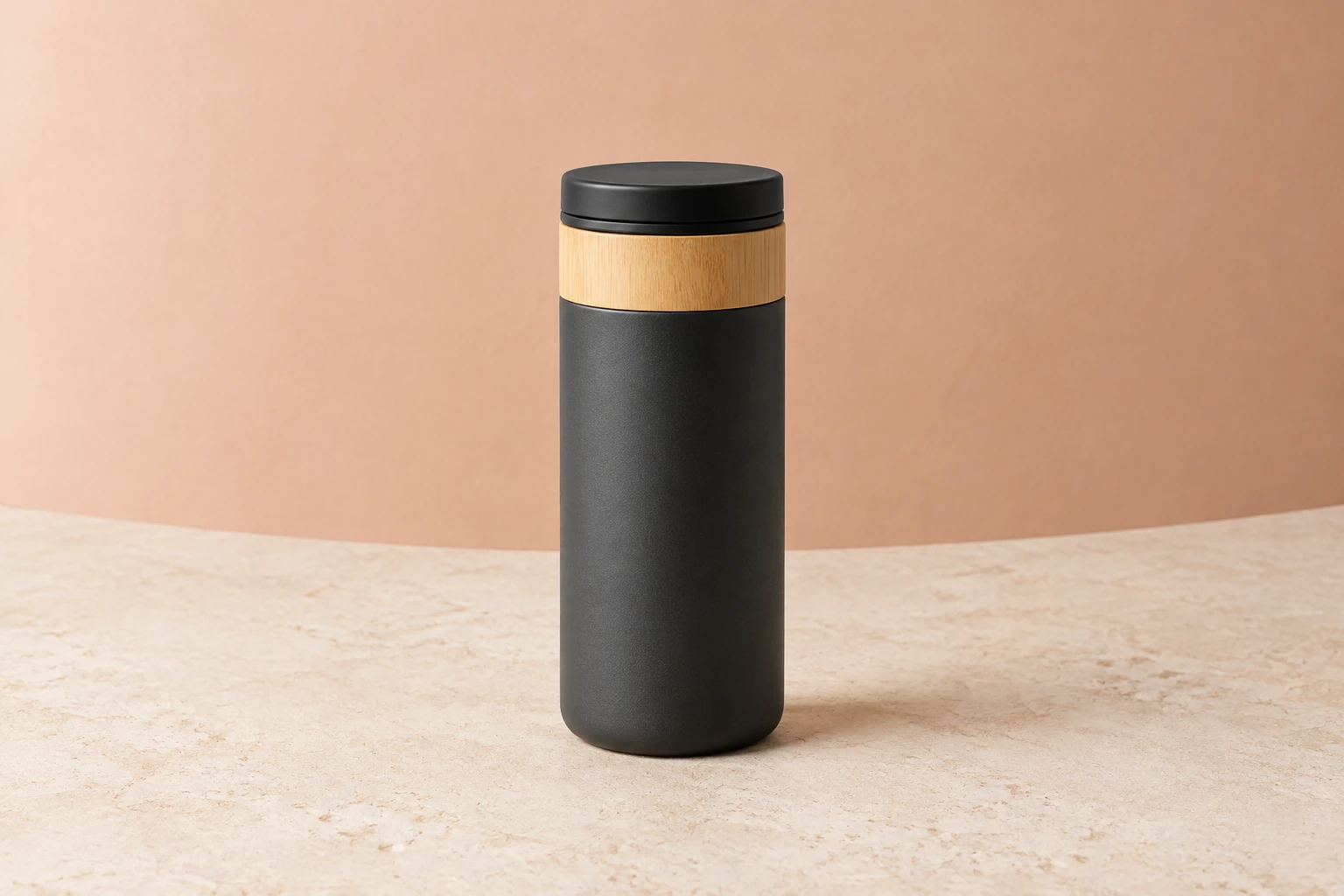
Build a clear product image from a written description, or upload one reference image and request a focused revision. This guide uses the GPT Image 2.6 AI Image Generator for a compact travel mug concept, with attention to its silhouette, lid edge, bamboo grain and contact shadow. Text to Image starts with an editable prompt and zero uploads; Image to Image uses one reference and an editable prompt. Treat each result as a still image to review and refine, not as a guarantee of exact fidelity or automatic background segmentation.
For a new scene, open Text to Image. It uses an editable prompt and zero uploads. To revise an existing subject, choose Image to Image, upload one actual reference image, and edit the prompt. This model-based workflow does not mean automatic background segmentation.
State the subject and its defining features, then specify composition, setting, lighting, and materials. For the mug, name the charcoal cylinder, pale bamboo collar, plain black lid, cream stone, and peach wall. Mention what must stay visible, such as the complete silhouette and a restrained contact shadow.
GPT Image 2.6 Flare and Sunburst are enabled for generating and editing. Select a model and available size or aspect choice, then review the live Required Credits quote and confirm account access before selecting Generate. For an edit, ask for one specific lighting or background change rather than redesigning the subject.
Inspect the silhouette, lid edge, bamboo grain, contact shadow, and any unwanted lettering. Check whether distinctive details and colors are preserved in an edit. If something needs work, revise the prompt with a narrow, explicit request and generate again. Status and ready images appear in History.
A useful prompt turns a product idea into visible instructions. Describe the mug’s cylindrical charcoal body, smooth pale bamboo collar, fitted black lid, and lack of a handle or markings. Then define the scene: full product in frame, cream stone beneath it, a curved peach wall behind it, and soft light that reveals material texture. Naming the contact shadow helps set a grounded, restrained look. Keep the brief focused; do not rely on an implied product specification that is not in the prompt.
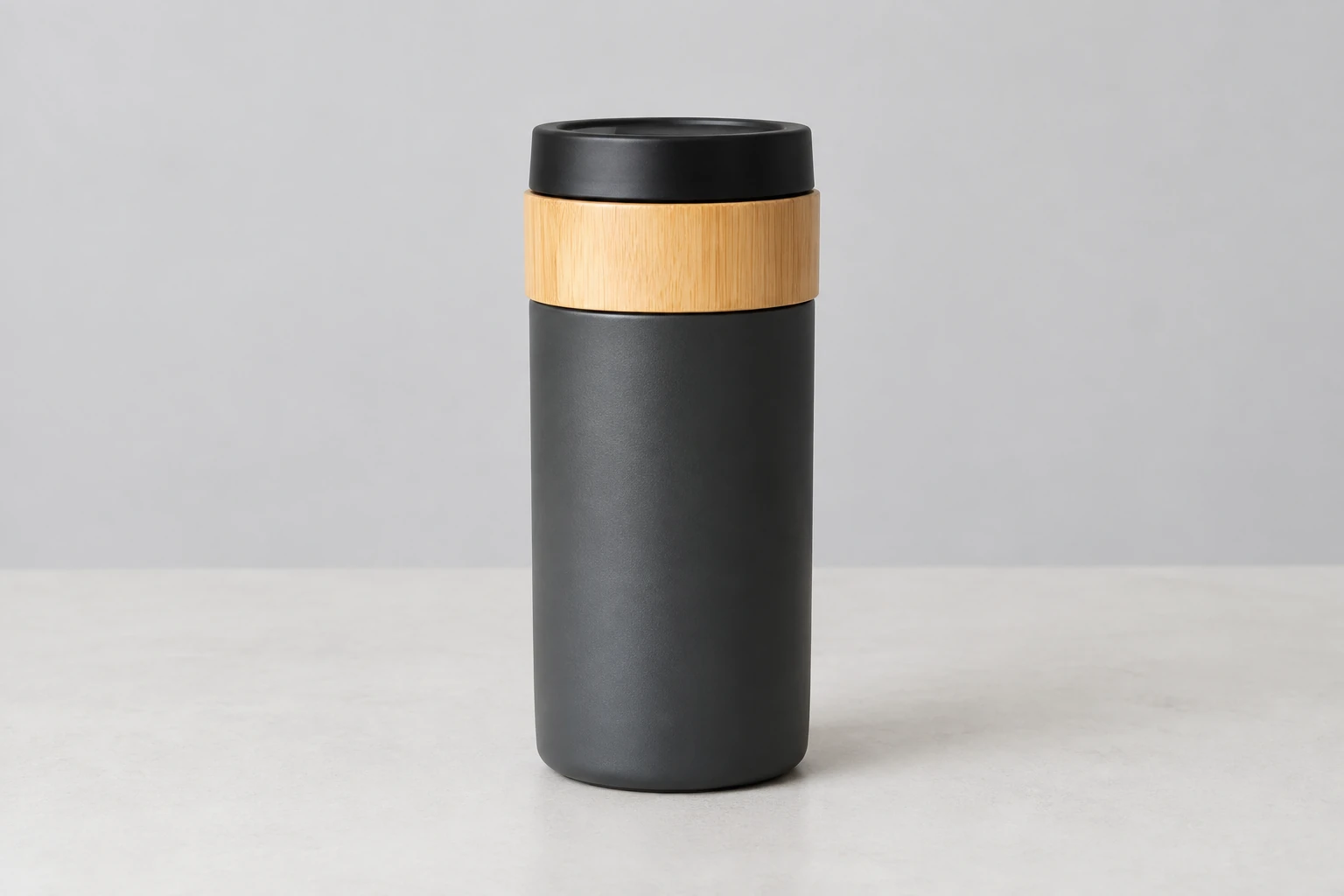
Image to Image takes one supplied reference and an editable prompt. Use a real photo of the object or character you want to retain, then request a contained change such as softer lighting or a simpler background. State which visible identity, design, colors, and details should remain. Review the generated image carefully: edges or small features can shift, so a reference is guidance rather than a promise of exact fidelity. This is a model-based image workflow, not a claim of automatic cutout or background segmentation.
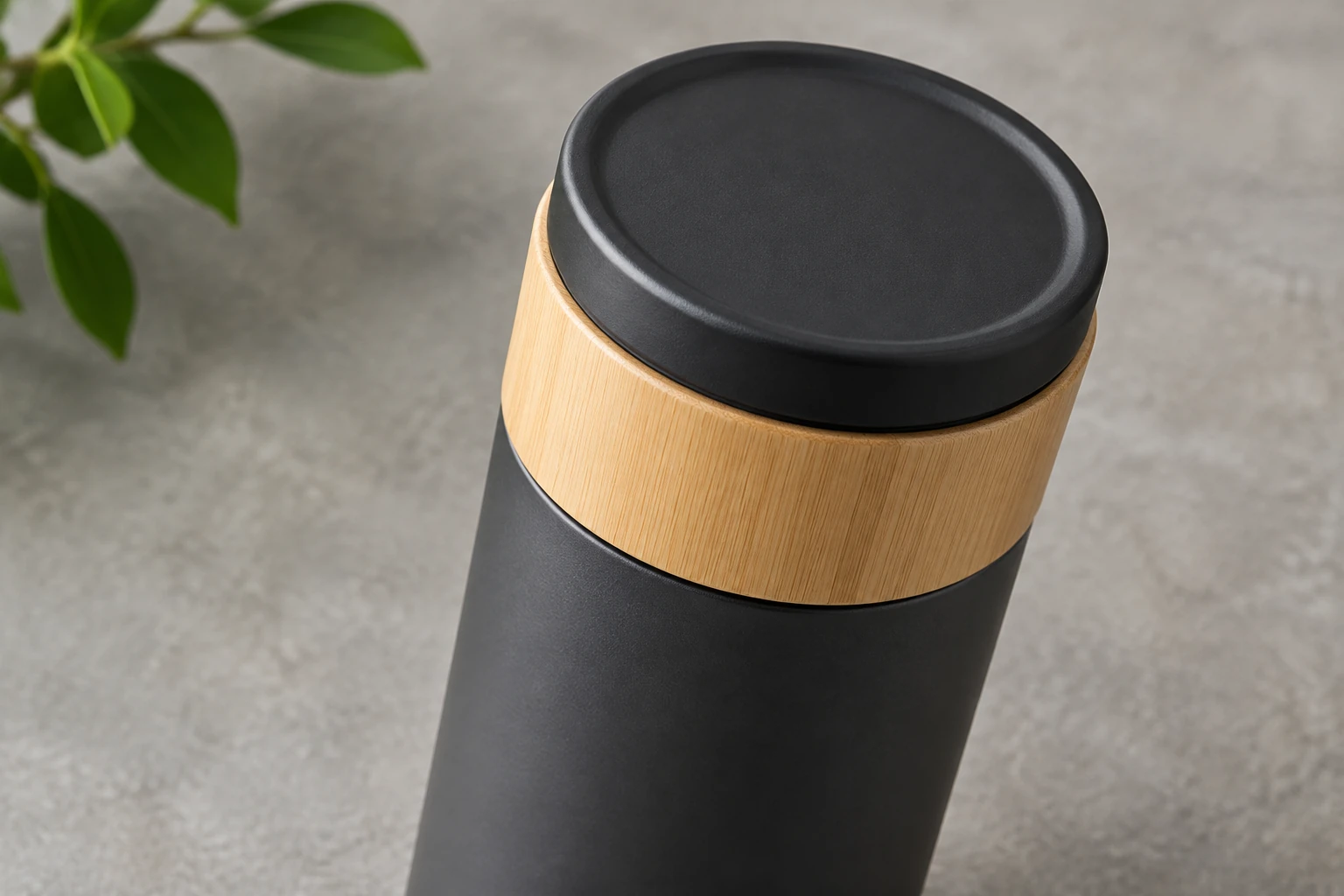
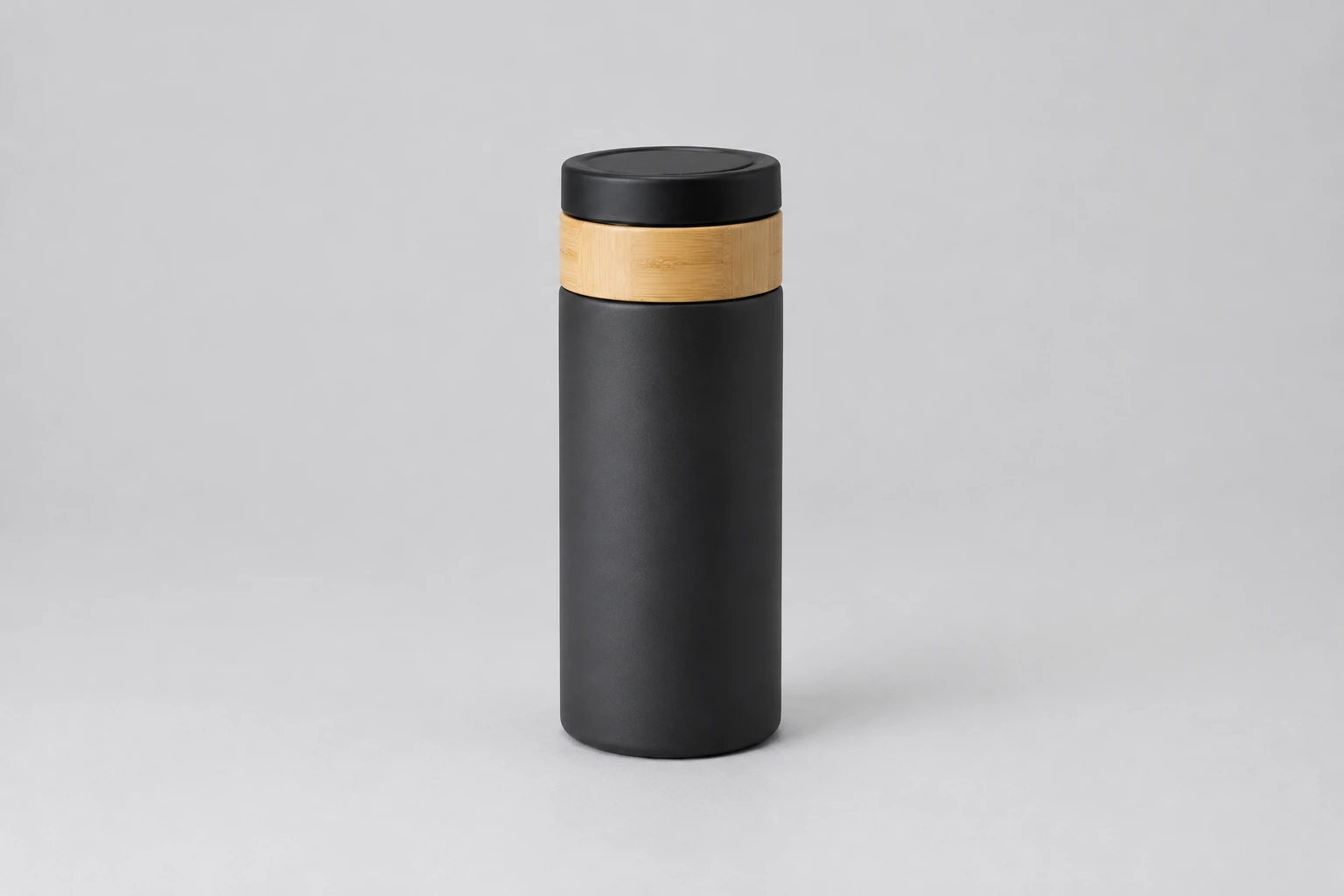
A polished-looking image still needs a practical review. Check the mug’s overall proportions and complete outline first, then inspect the lid edge, bamboo grain, and shadow beneath the base. Look for stray lettering, logos, or added features that were not requested. The cream-stone and peach-wall composition gives one visual direction; a neutral light-gray studio with a pale seamless surface and soft overcast light offers another while keeping the whole mug visible.
The selectable model names covered here are GPT Image 2.6 Flare and GPT Image 2.6 Sunburst. Both are enabled for generation and editing; other image models may also be available. Do not assume a fixed credit amount: current model and size or aspect choices determine the live Required Credits. Check that the selected model is available to your account and review the quote before Generate. Use History to find status and ready images.
It creates still images from editable text prompts and can use a supplied image as a reference for an edit. You can describe the subject, composition, lighting, and materials, then review and refine the result. Do not assume automatic background segmentation or exact preservation.
Yes. Text to Image uses an editable prompt with zero uploads. Image to Image uses one reference image and an editable prompt. For an edit, upload the actual object or character photo you want to guide the revision.
These two models do not have free-eligible access, so do not assume a free allowance or trial. Check account access and the live Required Credits quote before Generate. The current model and size or aspect choices determine the quote; it is not a fixed price.
Generation time can vary, so no exact wait is promised here. Check status and find ready images in History.
GPT Image 2.6 Flare and GPT Image 2.6 Sunburst are separate available models for generation and editing. To compare them for your task, keep the prompt, reference and available settings the same, then inspect the details that matter to your brief. Review the live credit quote for each selected configuration.
Inspect the full silhouette, important edges, material details, contact shadow, and any unwanted lettering. For a reference edit, check that visible identity, design, colors, and distinctive details remain. If needed, make a narrow prompt change and iterate rather than expecting exact fidelity.
Explore the product background remover page for a separate background-focused workflow.
Read the Terra-versus-Sol guide for a separate product-photo handoff and cleanup checklist.
Review pricing information and check your current account options.
bulkbgremover.com · Updated