Product Background Remover
Explore the separate background-removal task when you need a product isolated rather than a revised catalog scene.


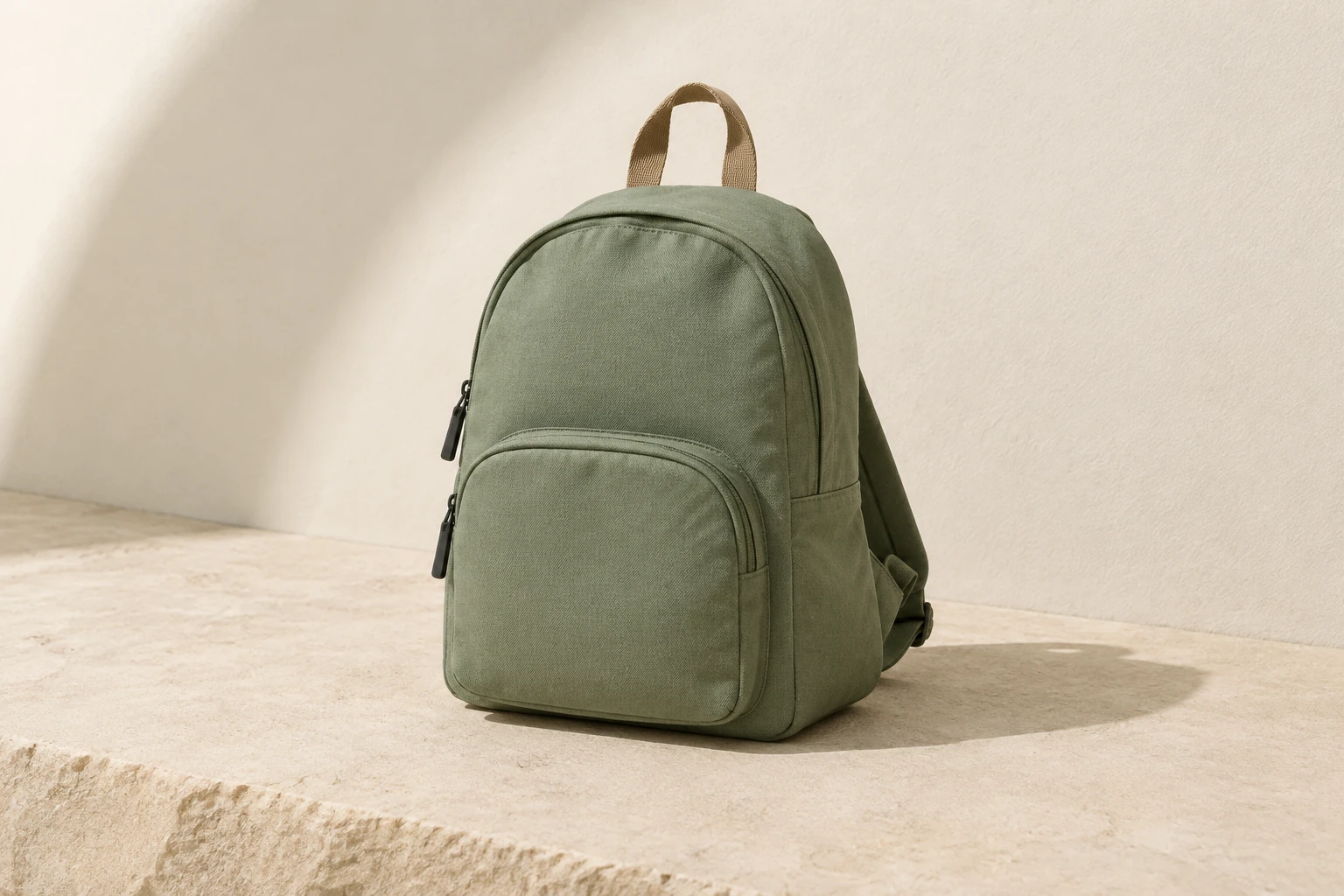
MiniMax H3 Image creates still images from your description or refines one supplied reference. Start with a clear backpack catalog scene, then inspect the canvas, zippers, straps and contact shadow. For an existing product image, request one background-wall change while preserving its own subject and supporting surface.
Select Text to Image for a new image: it has an editable prompt and zero uploads. Choose Image to Image when revising a reference: it uses one supplied image and an editable prompt. The model and image settings are in the generation interface; use the mode that matches your task.
State the bag’s color, material, shape, and distinguishing details, then describe the background, surface, lighting, and framing. For the example scene, request the full backpack against a warm off-white curved wall, with the pale stone surface and contact shadow visible. Name what must stay in frame, especially straps and handles.
Prepare one clear actual reference showing the subject and the layout you want to retain. Ask for one change, such as replacing only the wall, and explicitly say what must remain: the subject, colors, materials, placement, and tabletop. This is an image edit, not background segmentation; use a separate segmentation tool when you need that operation.
Check that the whole bag and straps are visible, then inspect zipper edges, canvas weave, seams, proportions, light, and the contact shadow. Look for unwanted text, logos, extra objects, or changes to the reference subject. History shows generation status and ready images; review the result there before using it.
A catalog prompt works best when it identifies both the product and the picture’s boundaries. Describe the compact sage-green canvas backpack, its rounded front pocket, short tan webbing handle, and plain dark zipper pulls. Specify the pale sand-colored stone and warm off-white curved wall, and ask for the complete bag with its contact shadow visible. Keep the instruction direct: no brand marks or lettering, no cropped straps, and no added props. An alternate concept is a quiet pale blue studio wall behind a light natural-wood tabletop, with the complete bag and straps still readable. Choose a supporting surface and wall color that keep the product outline easy to distinguish.
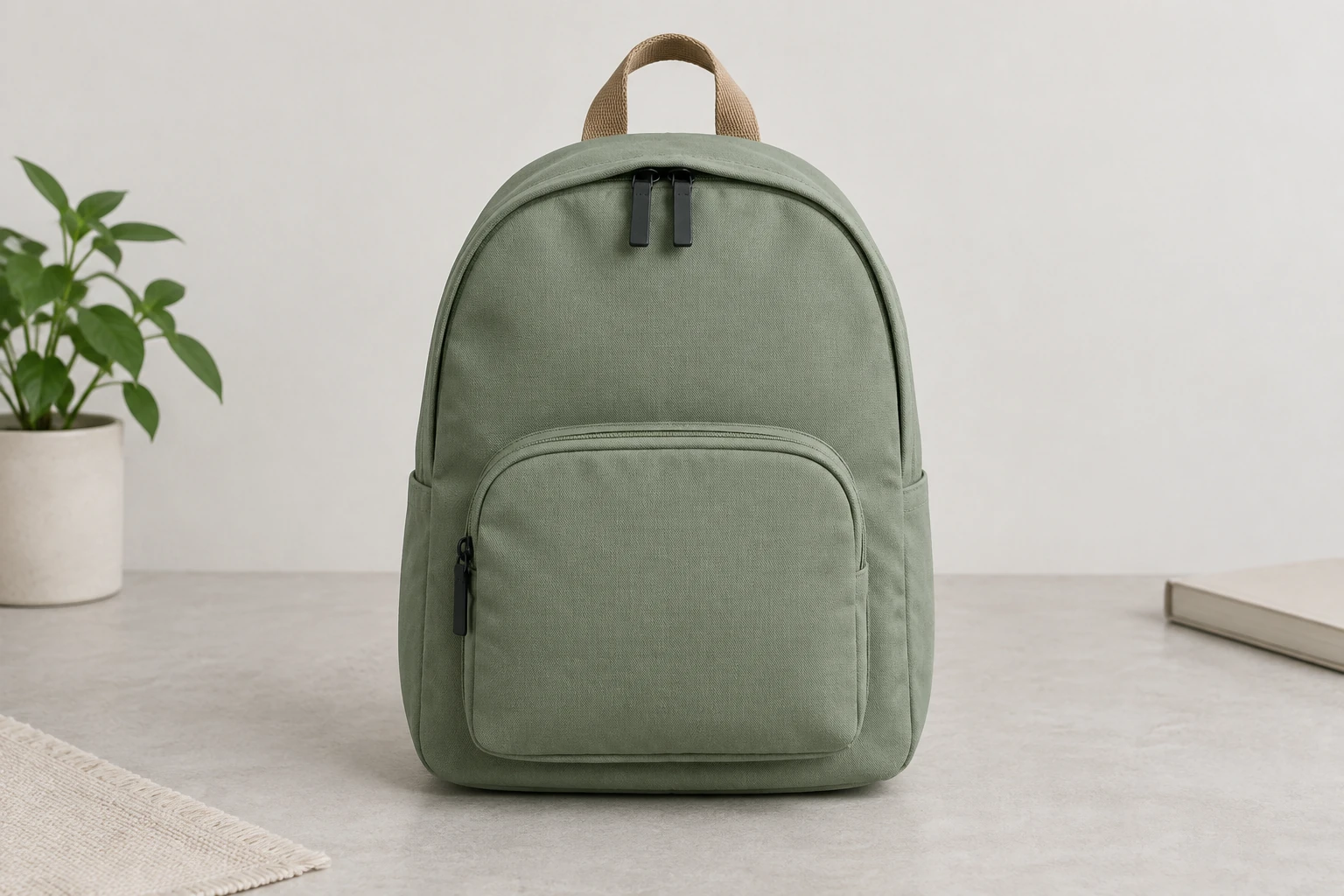
For Image to Image, supply one actual reference that clearly shows the object or scene you want to retain. The example edit prompt is written for any supplied image: it does not replace the reference subject with the backpack. It asks for a narrow wall change while preserving the reference’s visible subject, layout, colors, materials, and details. Adjust the requested change to fit your image, and state what should remain unchanged. If the source image has a busy background or obscured edges, choose a clearer reference when possible; do not rely on the prompt to recover details that are not visible.
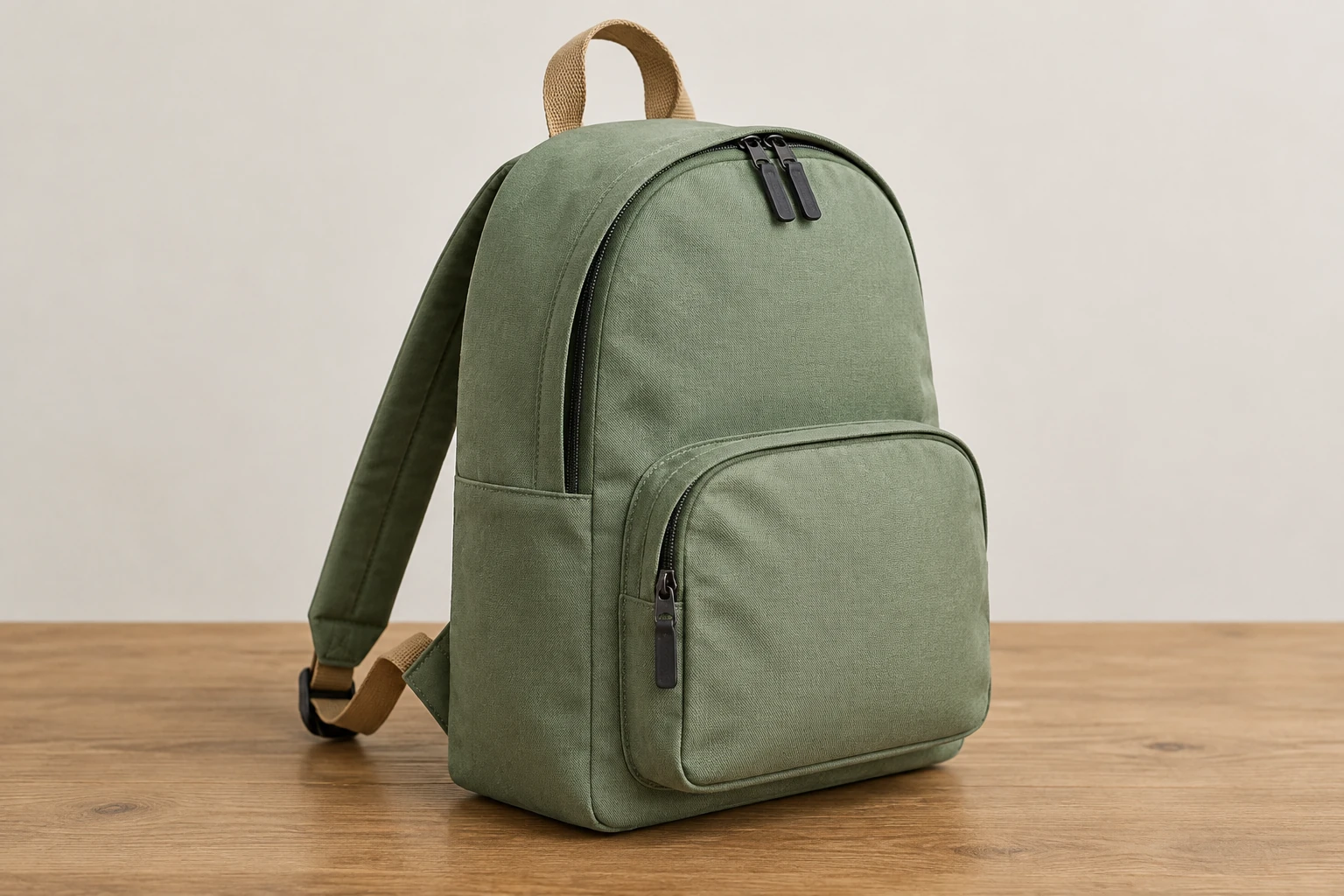
Model, aspect, and resolution settings determine the live Required Credits shown by the interface. This model does not have free-eligible account access here, so check paid eligibility and the current quote before selecting Generate. There is no fixed cost or exact waiting time to assume. After generation, use History to check status and open ready images. Judge the result on practical catalog needs: intact proportions, readable straps, convincing material appearance, clean edges, suitable light, and no unwanted text.
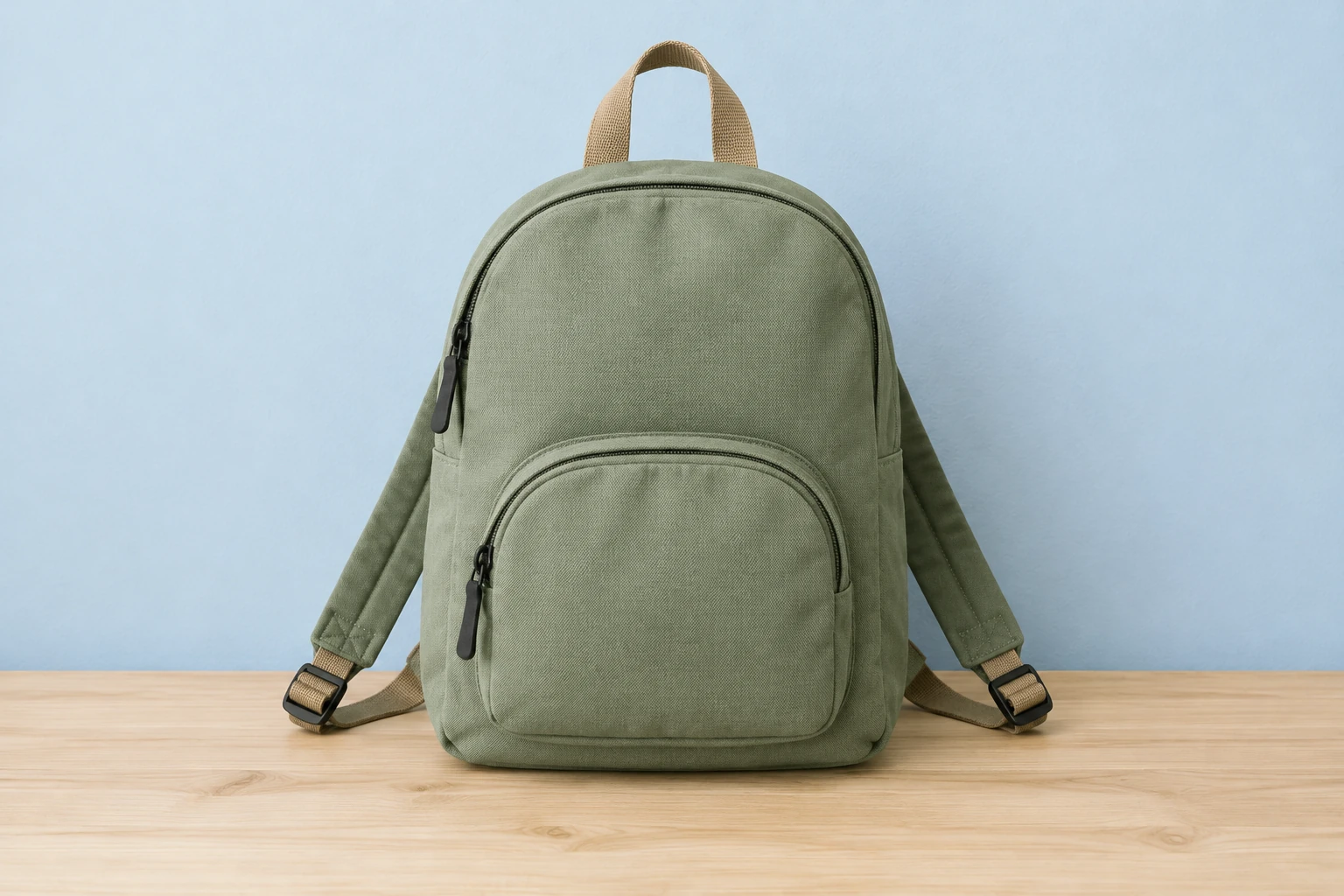
This guide covers the still-image interface and one-reference editing. Text to Image starts from an editable prompt with no upload; Image to Image uses one supplied reference and an editable prompt. If your task is to separate a product from its background, use an actual background-removal or segmentation tool rather than treating a generated wall revision as segmentation. The native model menu may expose other choices, but this guide focuses on MiniMax H3 Image.
It provides still-image generation through Text to Image and reference-based editing through Image to Image. Text to Image takes an editable prompt with zero uploads; Image to Image takes one supplied reference and an editable prompt. Background segmentation is a separate task.
Text to Image uses no uploads. Image to Image uses one supplied reference. This guide describes the modes available here and does not assume a multi-reference workflow.
This model has no free-eligible account access here. Check paid eligibility and the current Required Credits quote before Generate; the displayed quote depends on the selected model, aspect, and resolution settings.
No exact waiting time is promised. History shows the generation status and ready images, so check there for progress and to open a completed image.
Use one clear actual image in which the subject, layout, and details you want to keep are visible. Request one specific wall change, then state what must remain unchanged, such as the subject, colors, materials, placement, tabletop, and visible shadow.
Check the complete bag and straps, proportions, zipper edges, canvas weave, seams, lighting, and contact shadow. Also look for unwanted text, logos, added objects, or changes that conflict with the reference.
Explore the separate background-removal task when you need a product isolated rather than a revised catalog scene.
Read the Terra-versus-Sol guide for a separate product-photo handoff and cleanup checklist.
Review available credit plans and account options; the image generator shows the quote for your chosen settings.
bulkbgremover.com · Updated