

Unforgettable Car Trend: Prepare Person and Car Photos
Make an Unforgettable Car Trend clip from a well-chosen person photo and, if needed, a separate vehicle reference. Start by checking the edges, crop and clarity of each file. The fixed car-side motion provides the scene; your photos provide distinct appearance cues for the person and the optional car.
Create your car-side clip
Preview the fixed car-side motion
History
Loading history…
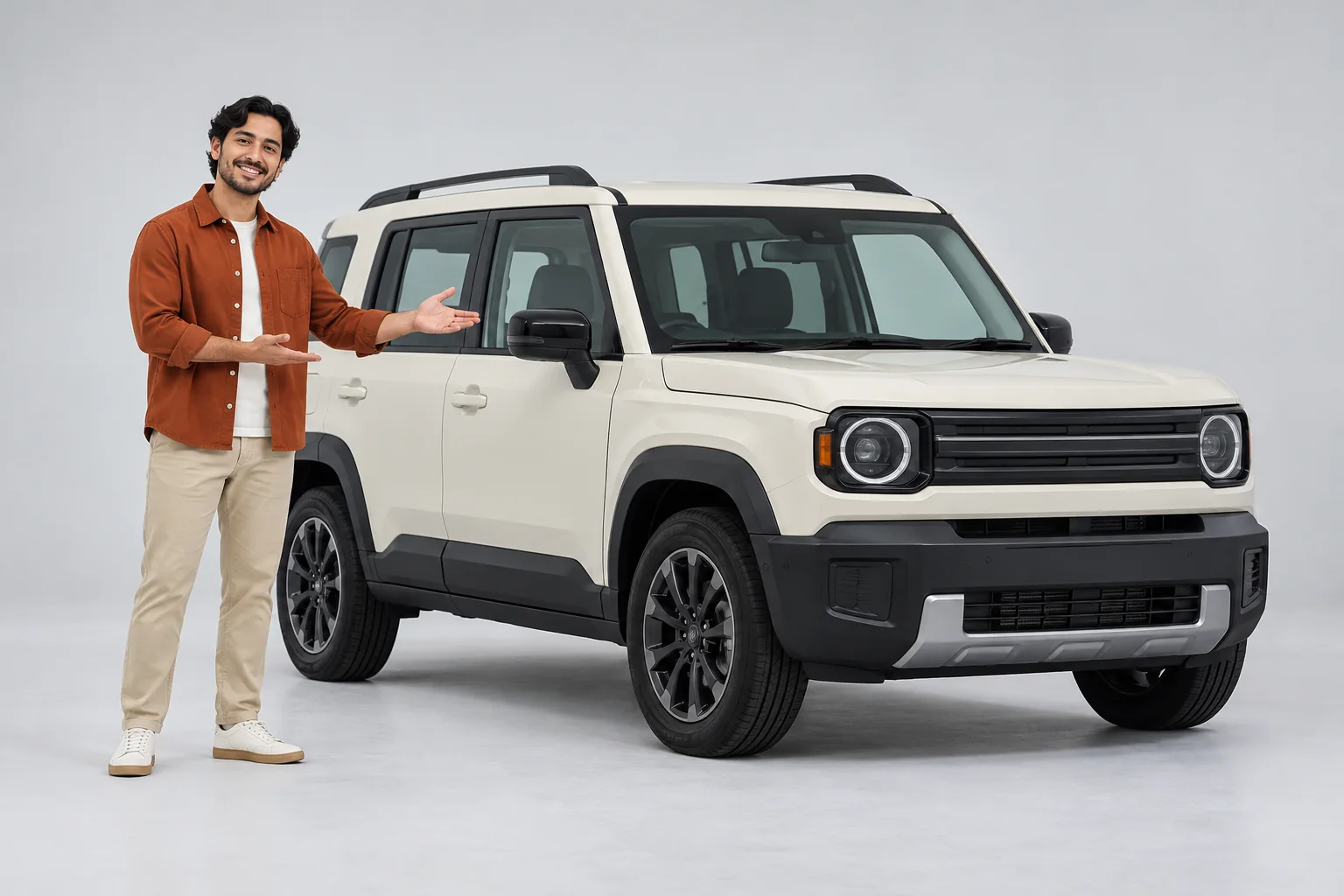
Organize the inputs before you generate
The neutral-studio concepts focus on a rust-colored shirt and an ivory vehicle with clear outlines. This is useful when you have several possible source images and need to choose one consistent pair. Compare the face at a normal viewing size, then compare how much of each car is visible. A tidy set of references is easier to review than a folder of near-duplicates with uncertain roles.
Create your Unforgettable Car Trend clip
- Choose one clear person photograph from your source files.
- Watch the fixed reference to understand the car-side gestures.
- Add a separate vehicle image only when you want that appearance cue.
- Check the previews, optional style direction, fifteen-second setting and live quote.
- Generate one clip and review the finished motion before preparing your next version.
Choose the lead photo
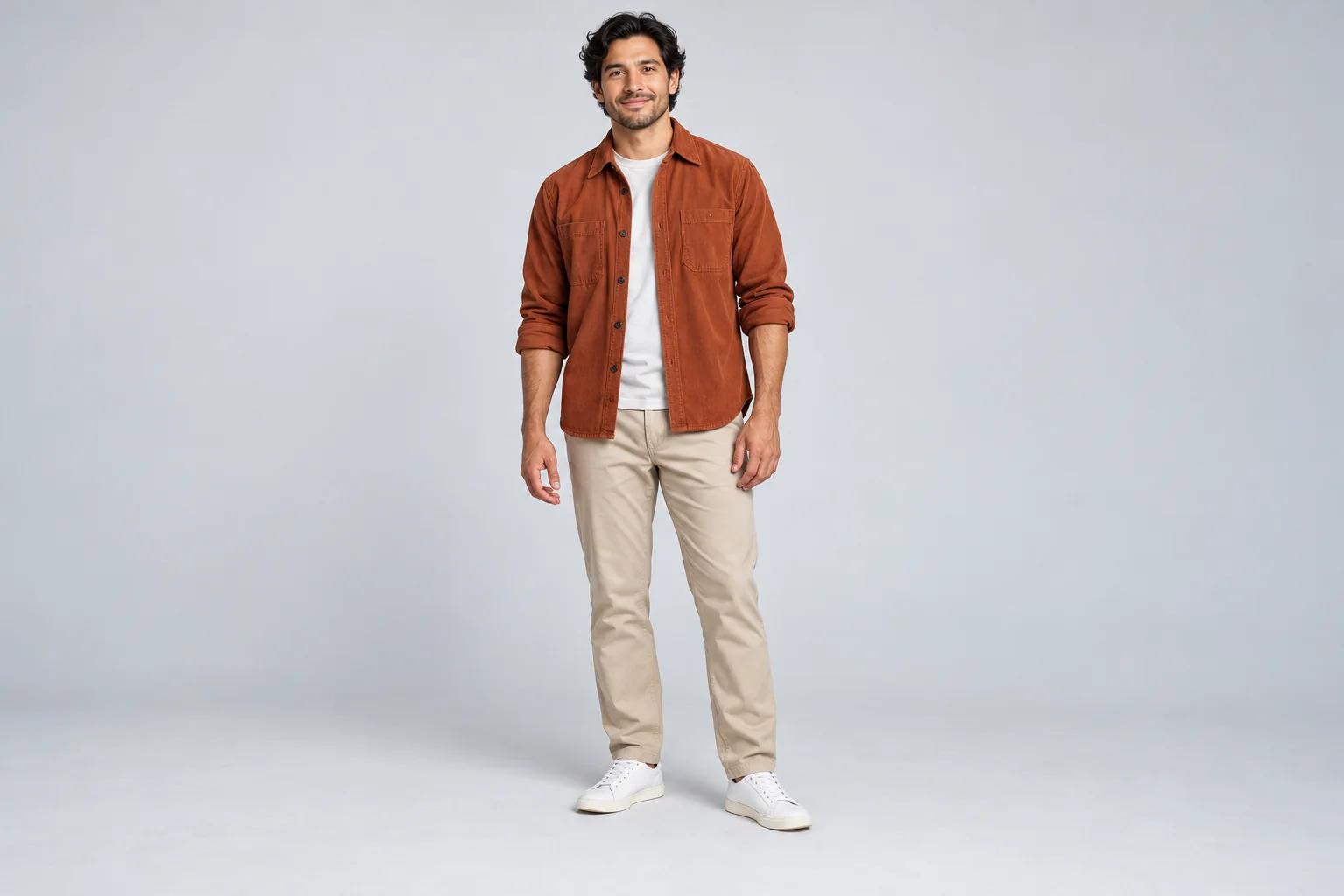
Choose the strongest single-person photograph rather than combining several people into one file. Look for sharp eyes, natural proportions and clothing that is not hidden by foreground objects. Leave useful room around the arms and head. A simple background may make the silhouette easier to inspect, but background removal is not required by this video form. If you prepare a cutout elsewhere, check hair and sleeve edges before using it.
Decide whether to add a vehicle reference
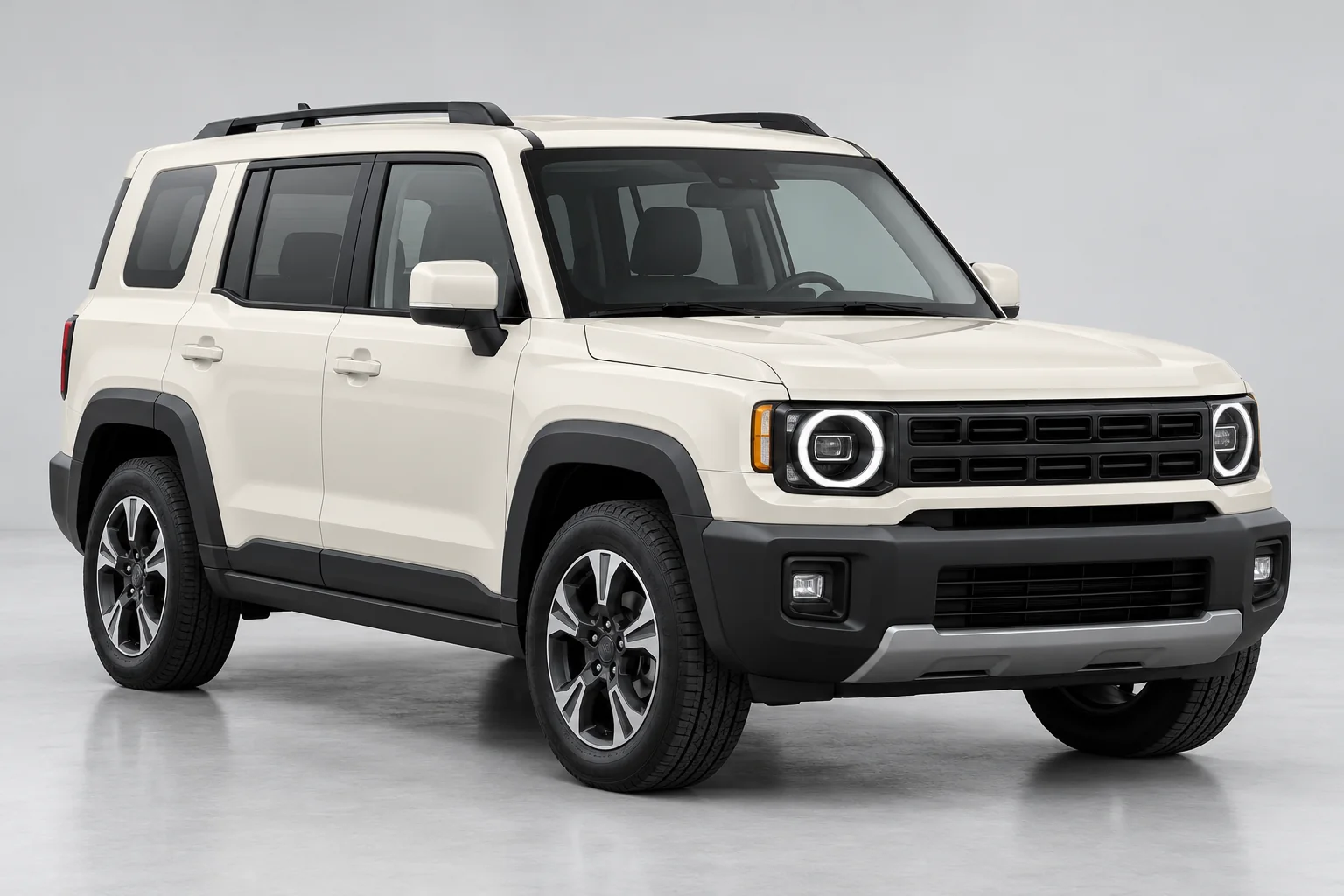
The optional vehicle reference should show the car rather than a collection of car details. Include the roof and visible wheels, keep perspective plausible and avoid a screenshot filled with unrelated interface elements. Use this in the second slot, separately from the person. If none of your car images is clear, you can start with the lead alone instead of adding an unhelpful reference.
Keep the visual direction focused
Keep a first attempt restrained: soft neutral light, a clear person silhouette and a clean vehicle view. The supplied reference remains a garage performance, so request atmosphere rather than an unrelated road scene. Change only one source or one style choice when you compare versions. Sorting several photographs in advance does not turn this form into a batch-video generator; each submission is a single attempt.
Review the whole scene before sharing
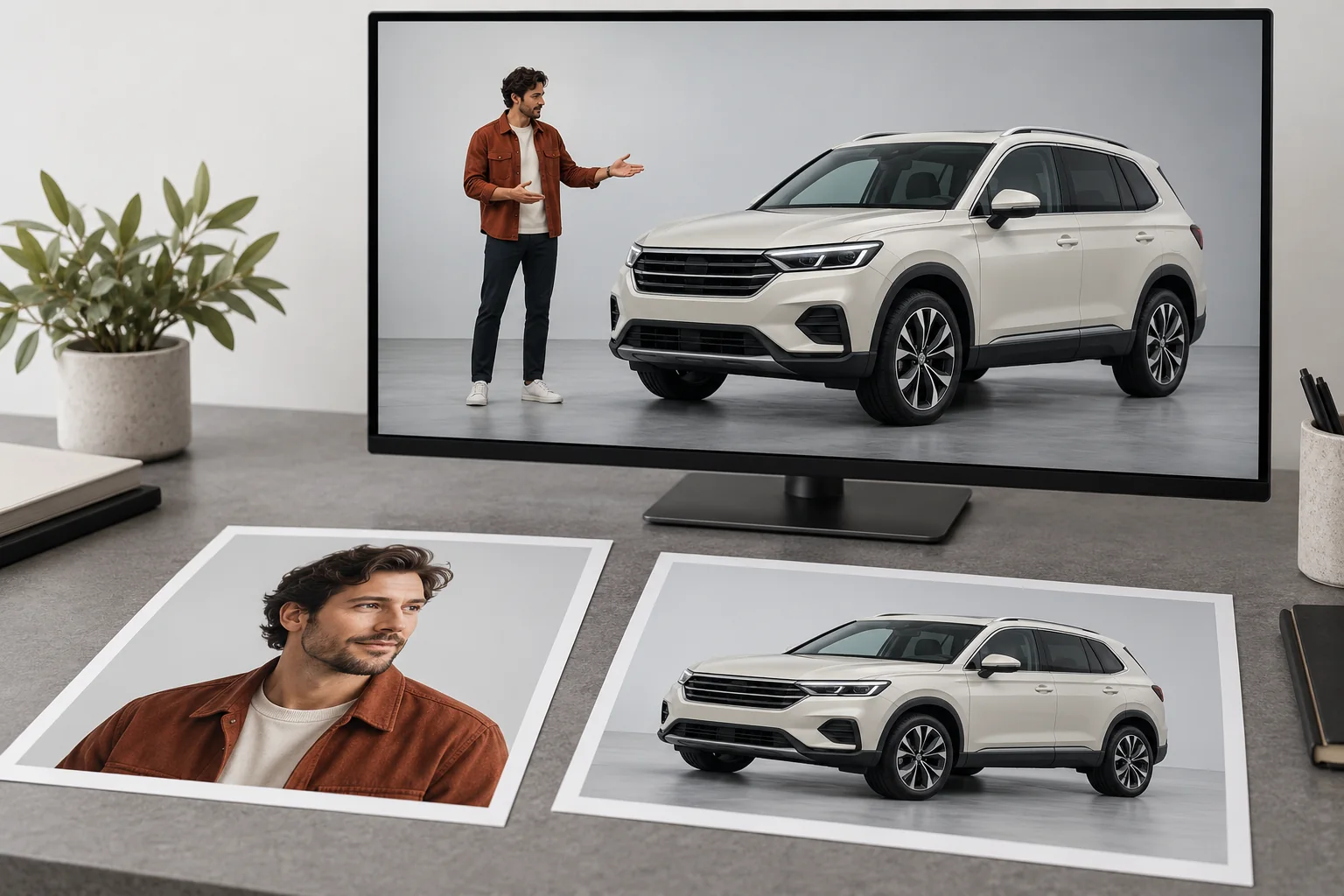
Review the face, hands and vehicle edges through the whole clip. A sharp still reference does not remove the need to inspect motion. Watch for fingers crossing bodywork, shifting wheel shapes or a roofline that changes unexpectedly. If the clip will sit alongside other visual assets, check its crop and tone with those assets before exporting your final edit. Keep the selected source files clearly named so you can reproduce your choices later.
Continue your project
Questions about the car trend
Must I remove the portrait background first?
No. This video form requires a clear lead image, not a specific background-removal step. If you edit the source elsewhere, inspect its edges before uploading.
How many images does one attempt use?
One required lead image and, optionally, one separate car image. The two slots have different roles.
Is this a batch-video tool?
No. Preparing many source photographs can help you choose, but this page submits one video attempt at a time.
Can I leave the car slot unused?
Yes. The supplied motion still guides the scene. Use the second image only when you want to influence the vehicle appearance.
Can I upload my own driving clip?
This page has a fixed car-side motion reference and no replacement-video input. Its subject is a parked-car scene.
How long is a generated video?
The page is configured for fifteen seconds of output. Generation time is separate and can vary with the service and queue.
Where are the cost and access rules shown?
Check the live generator quote and your account status before submitting. Image-preparation tools can have different offers from video generation.
What should I check before downloading?
Watch the full motion, then inspect face identity, hands, wheel shapes and vehicle edges. Choose a cover only after the complete clip looks suitable.
bulkbgremover.com · Updated
What's new on this page
- — Added photo inputs, a motion reference preview and guidance for creating this video effect.