Product Background Remover
Explore a separate workflow for product-background removal.


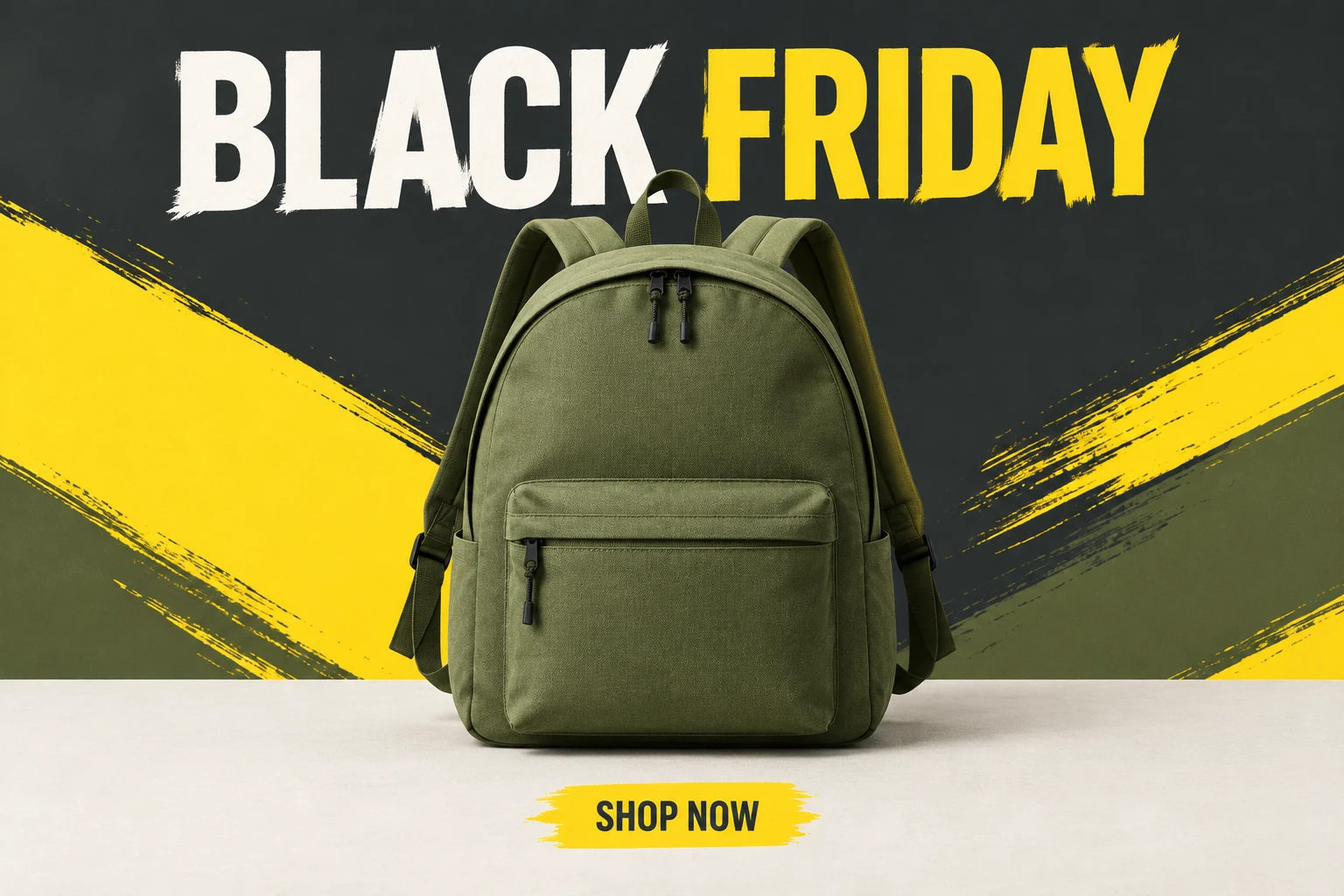
The Black Friday Poster Maker guide helps you plan a focused ecommerce poster with a prominent product, clear hierarchy, and brief campaign lettering. Start in Seedream 5.5: choose Text to Image to create an original poster from an editable prompt without uploading an image, or Image to Image to work from one uploaded product photo and an editable prompt. The example uses an unbranded olive-green canvas backpack with yellow, charcoal, and off-white. Describe the composition in the prompt, then check the product edges after generation. Review the image, then add verified sale details in your usual editor.
Choose Text to Image to create a fictional original poster from an editable prompt; this mode has no upload. Choose Image to Image when you have a real product photo. It takes one uploaded image and an editable prompt, and can adapt the poster treatment to the actual product in that photo. The backpack in the example is not substituted for your uploaded product.
Choose from the current Seedream 5.5 size and aspect options with your intended placement in mind. Describe the visual style in the prompt: there is no dedicated style preset. Specify product position, background colors, lighting, and margins. For the example, use directional studio light, a bright yellow field, charcoal shapes, and off-white space.
Request only short, exact campaign phrases, such as BLACK FRIDAY and SHOP NOW. Before selecting Generate, check the current credit quote shown beside it and compare it with your available account balance. If the result needs adjustment, change one prompt variable at a time—such as product scale, background balance, or headline spacing—so you can judge what changed.
Inspect the product’s shape, color, count, markings, materials, edges, and placement. Check every letter in the image, then check generation status in History. Download the image and add verified prices, dates, offer terms, and other precise campaign copy in your usual editor. Check the final layout at the intended display or print size.
A useful Black Friday poster makes the product the first thing shoppers notice. Give it enough space to show its silhouette and important features; keep campaign shapes and lettering from crowding its edges. In the example, the rounded backpack top, front zipped pocket, plain straps, and dark buckles help define the subject. Bright yellow supplies campaign energy, while charcoal and off-white give the composition contrast and breathing room.
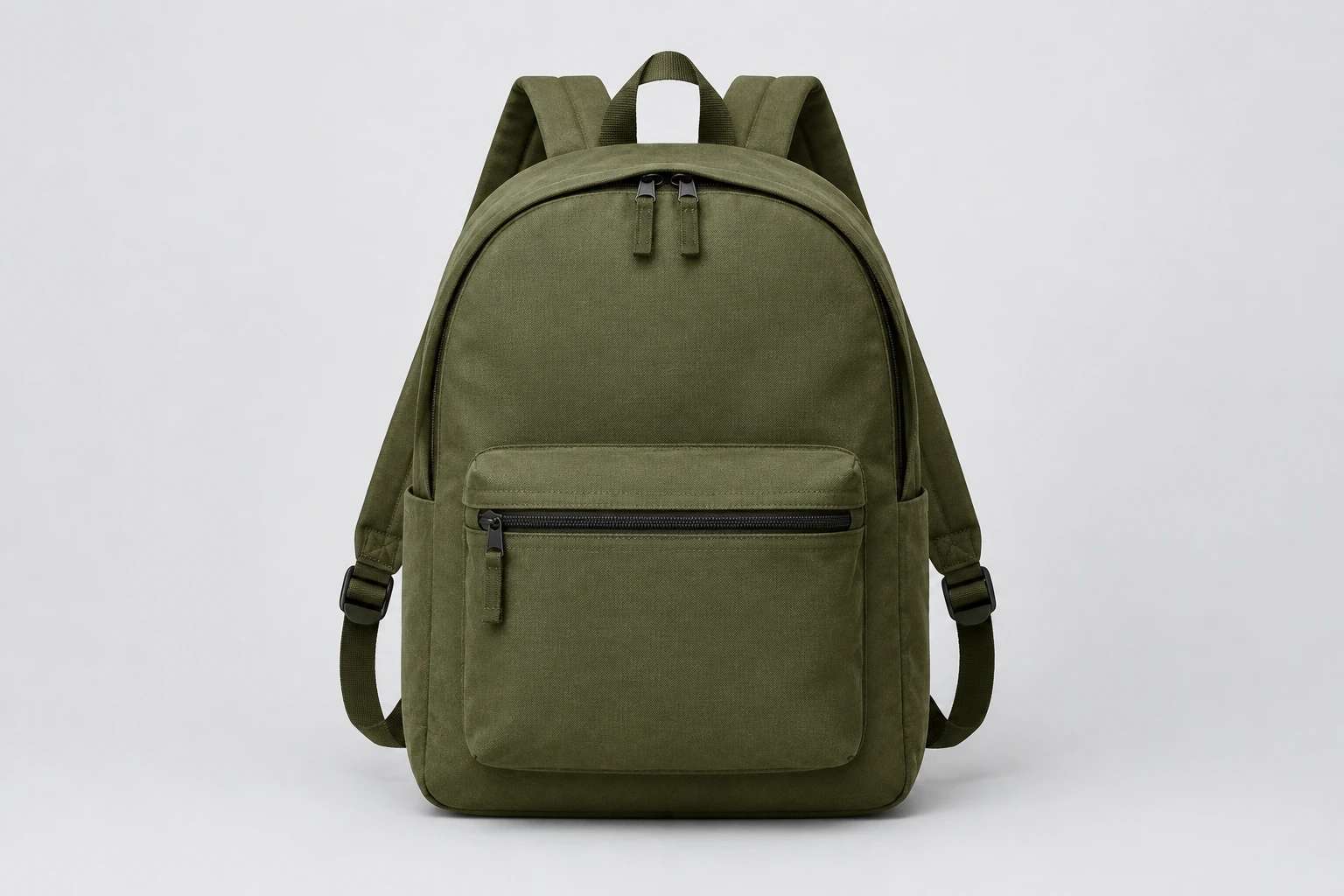
For Image to Image, start with one photo that shows the product clearly. Choose a view where its outline and important features are easy to see, with lighting that makes its color and materials legible. Avoid cropping off details you want represented. In the prompt, describe the desired poster composition and light while asking to retain the actual uploaded product. Text to Image is different: it creates an original concept from the prompt and does not take an upload.
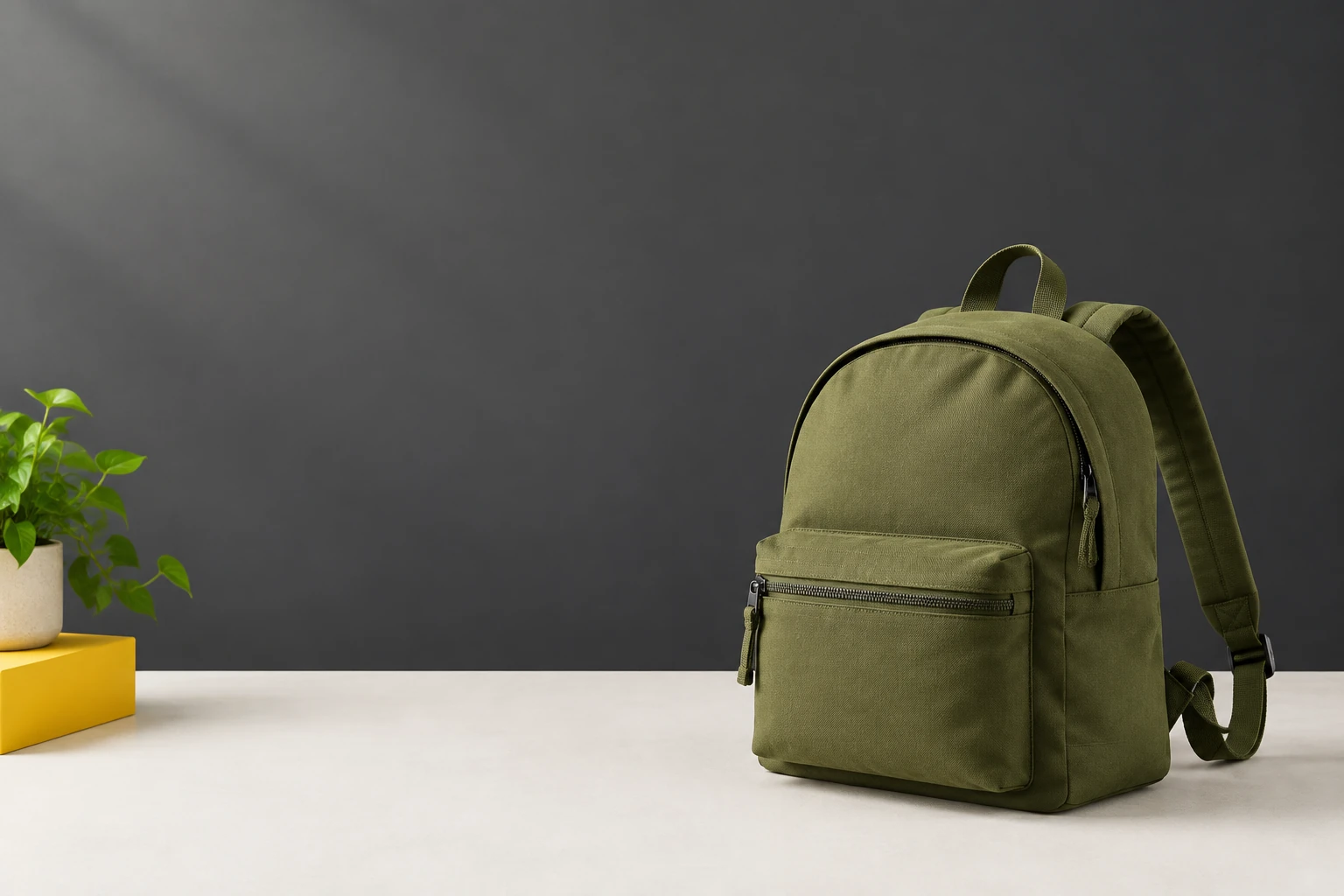
Keep the requested headline and call to action short, and specify where they should sit relative to the product. Leave safe margins around the outer edges and enough clear space between words and product details. Generated lettering needs close checking; add accurate merchant offer information and final precise lettering in your usual editor after downloading. Verify that the image’s colors, product, and campaign wording fit the intended audience and placement.
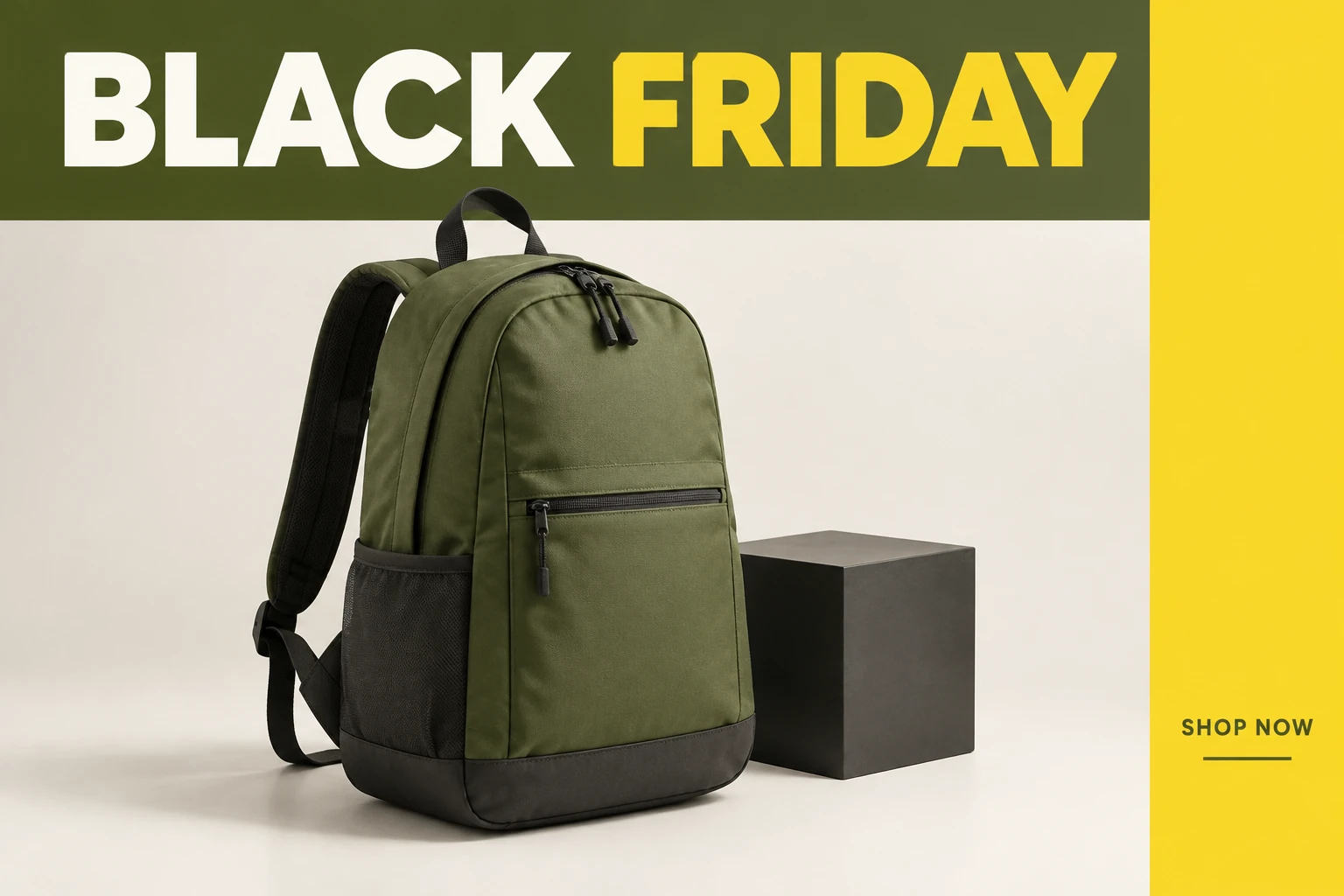
If a draft feels crowded, change one thing at a time: reduce product scale, shift the headline, simplify a background shape, or ask for softer light. Generate again and compare that specific change. Once the layout feels balanced, check product identity and all lettering at full view. For the final file, use the actual dimensions and quality appropriate to its intended screen or print placement; the available size and aspect options are shown in Seedream 5.5.
Access depends on the credits or offers currently available to your account; no allowance is guaranteed. Check your account and the live credit quote beside Generate before you start.
Image to Image takes one uploaded real product photo and an editable prompt. Text to Image uses an editable prompt without an upload. For the backpack example, show the front pocket, straps and buckles clearly.
Check the current credit quote displayed beside Generate, then compare it with your available account balance before generating.
Waiting time can vary. Check the generation status in History; no specific completion time is guaranteed.
Check and correct all lettering, then add verified prices, discounts, dates, and offer terms in your usual editor after downloading. Do not rely on generated text for precise merchant information.
Choose a current size and aspect option that suits the intended placement. After downloading, check the image’s actual dimensions and quality at the size it will be used, and review margins and lettering. Do not assume a vector file or print-ready PDF export.
Explore a separate workflow for product-background removal.
Explore a separate workflow for creating white-background product images in bulk.
Explore a separate workflow for resizing multiple images.
Explore a separate workflow for creating double-exposure compositions.
bulkbgremover.com · Updated