

AI Censor Remover for Temporary Design Marks
Replace a visible overlay
History
AI Censor Remover helps replace a disposable sticker, doodle, or temporary design label in an image you own or can edit. In edit mode, provide one reference photo and mark only the area to replace; the new fill is synthesized from visible nearby texture, not recovered from hidden original pixels.
How to use the image tool
- Choose edit mode and add one reference photo you own or can edit. Use a clear image where the temporary sticker, doodle, or design label covers only an area with visible surroundings to guide the replacement.
- Mark a tight region around the disposable mark, keeping the selection on the background rather than the subject. State what to replace and what to preserve, such as the nearby texture, lighting, framing, and all unmarked objects.
- Review the generated image at full size. Check the repaired area, edges, shadows, and unchanged details; if needed, refine the marked region or prompt and generate another version.
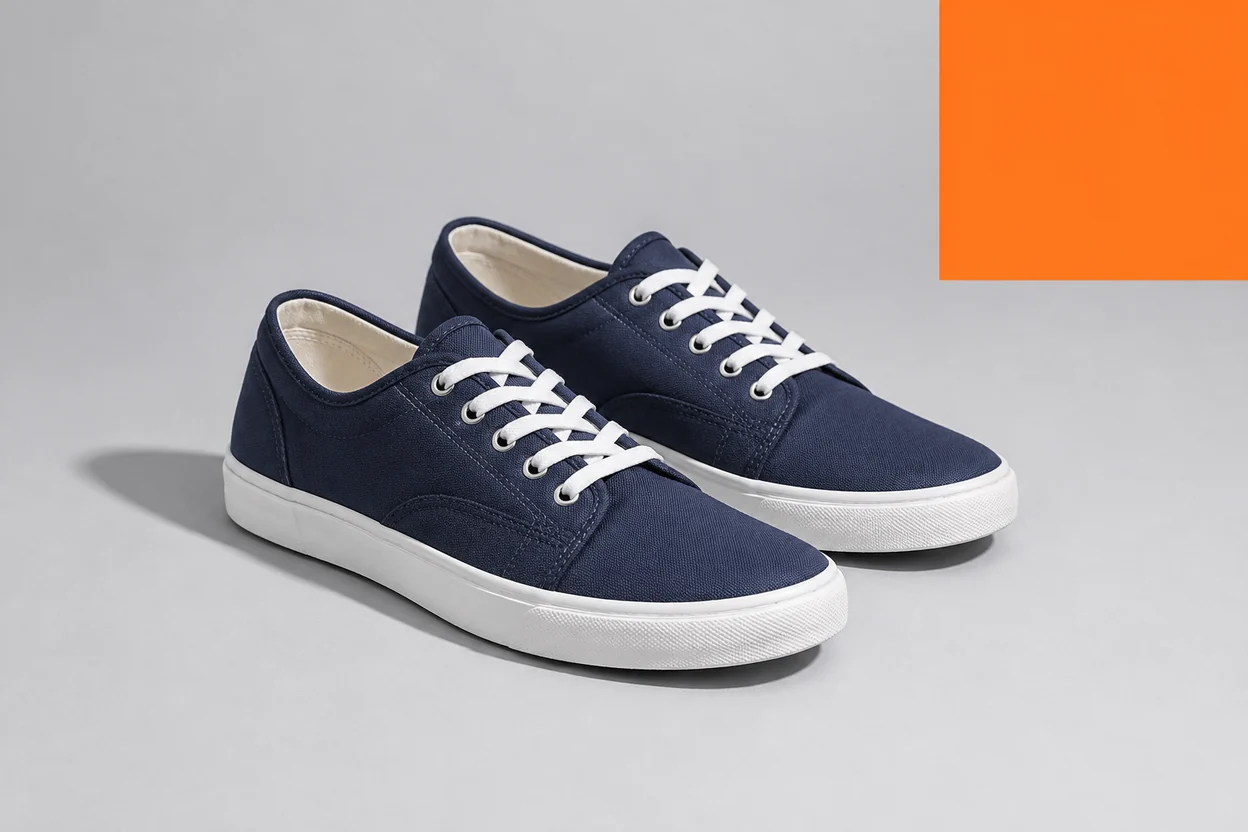
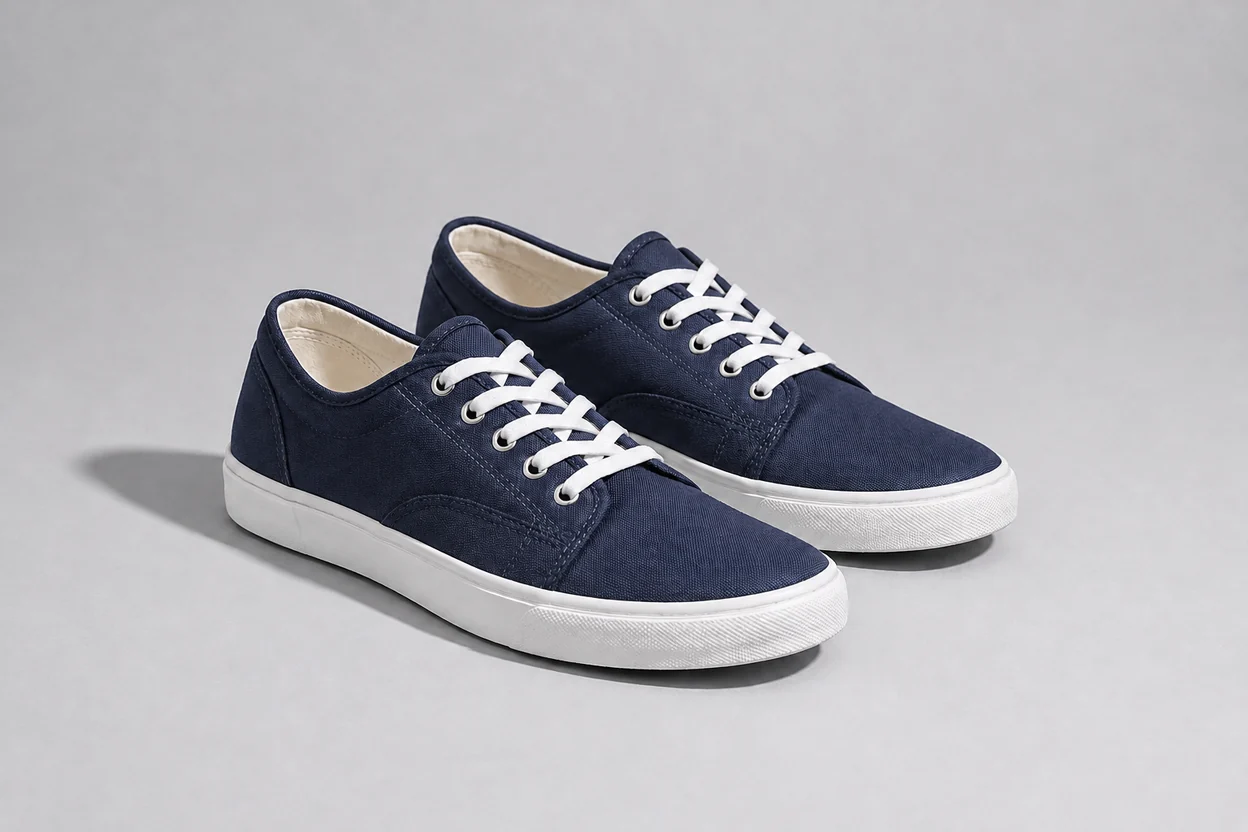
Compare the marked photo and the replacement fill
Check the result before using it
- Make sure the selected area covers only a disposable design mark on an image you own or can edit. Do not use faces, bystanders, ID details, private or intimate content, or true redactions.
- Zoom in on the replacement and compare its texture, lighting, and boundaries with the visible surroundings. The fill is newly synthesized from visible context; it does not uncover or restore hidden original pixels.
- Check the displayed quote before proceeding, then use History to review your generated images.
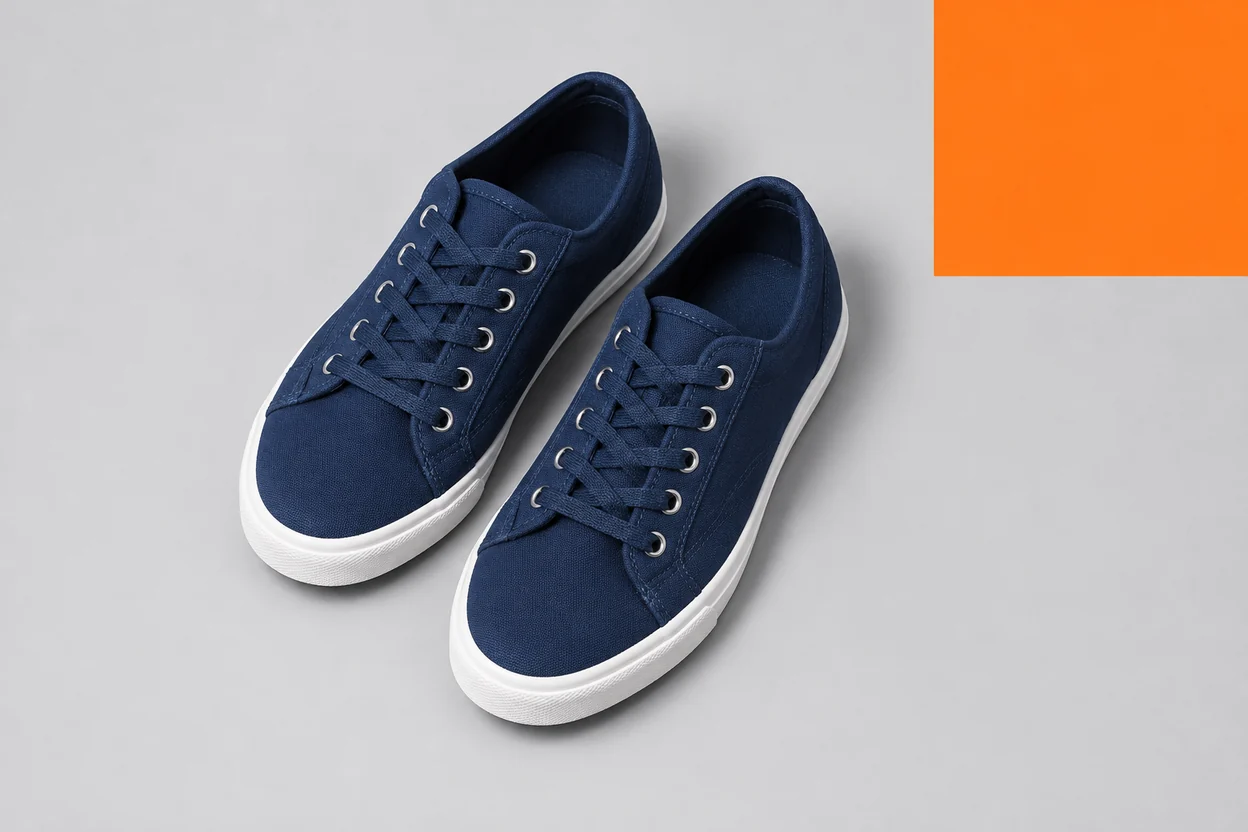
Questions about removing an overlay
What can AI Censor Remover replace?
It is intended for disposable stickers, doodles, or temporary design labels on images you own or can edit, especially when the mark covers an otherwise empty background area.
Can it reveal what was behind a mark?
No. The tool synthesizes a replacement from visible nearby texture and lighting. It does not recover hidden original pixels, so it cannot reveal covered information.
What should I keep out of the workflow?
Do not submit or mark faces, bystanders, ID details, private or intimate content, or true redactions. This workflow is for replaceable design marks, not concealing or exposing sensitive information.
What if I do not have a reference photo?
Use text mode to generate a new image from a written scene description. Edit mode uses one reference photo; text mode starts from scratch and requires no upload.
How long does image generation take?
Check History after you submit. The task status shows when your edit is ready to compare with the original portrait.
Can I try this with my current credits?
Sign in to check your balance and access. Before you start, compare your available credits with the quote shown for the chosen mode and settings.
Related tools
bulkbgremover.com · Updated
See update history
- — Use one reference photo in edit mode to replace a disposable design mark with a newly synthesized fill based on visible surroundings. Keep the selection tight, preserve the rest of the scene, and check the quote and result before proceeding. Updated the page title to end with the site name.